

Applying unique styles to specific pages is a common requirement for Joomla developers. Whether you want to change the background color of a landing page, hide a sidebar on a specific view, or adjust typography for a single article, Joomla provides several robust methods to achieve this without affecting your entire website.
In this guide, we will explore four professional methods to inject custom CSS into specific Joomla pages, ranging from beginner-friendly menu settings to advanced PHP template overrides.
Method 1: Using the Built-in Joomla Page Class
The most straightforward way to style a specific page is by using the Page Class feature found in the Menu Item settings. This method doesn't require editing any PHP files and is natively supported by most well-coded templates.
How to Set It Up:
- Navigate to Menus > [Your Menu] and open the specific menu item you wish to style.
- Click on the Page Display tab.
- Locate the Page Class field and enter a unique name (e.g.,
custom-promo-page). Note: Always include a leading space if your template appends this to existing classes.
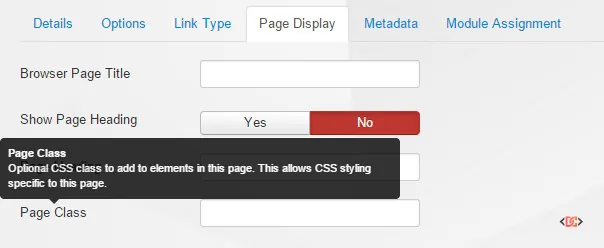
Applying the CSS:
Once saved, Joomla will add this class to the <body> tag or a wrapper <div> in your HTML. You can then target it in your template's CSS file (usually user.css or custom.css):
/* Target only the page with the 'custom-promo-page' class */
.custom-promo-page p {
    color: #ff0000;
    font-size: 1.2rem;
}

.custom-promo-page .main-content {
    background-color: #f9f9f9;
}
Method 2: Creating Dynamic Body Classes (Advanced)
If you want a more automated approach where every page on your site automatically receives a unique CSS class based on its menu alias or ID, you can modify your template's index.php file. This is highly efficient for developers managing large sites.
For Joomla 3.x:
Add this code to the top of your template's index.php:
<?php
  $app    = JFactory::getApplication();
  $menu   = $app->getMenu();
  $active = $menu->getActive();
  $class  = $active->alias . " pageid-" . $active->id;
?>
<body class="<?php echo $class; ?>">
For Joomla 4 and Joomla 5:
Joomla 4 introduced a new way to handle the application and menu objects. Use this updated syntax:
<?php
use Joomla\CMS\Factory;

$app = Factory::getApplication();
$menu = $app->getMenu();
$active = $menu->getActive();

// Check if a menu item is active to avoid errors on 404 pages
$pageClass = $active ? $active->alias . ' itemid-' . $active->id : 'default';
?>
<body class="<?php echo $pageClass; ?>">
This will produce HTML like <body class="about-us itemid-15">, allowing you to write page-specific CSS like .about-us { ... } or .itemid-15 { ... } instantly.
Method 3: Conditional Stylesheet Loading
Sometimes, a few lines of CSS aren't enough, and you need to load an entirely separate CSS file for a specific page. You can do this by checking the Menu Item ID directly in your template header.
Insert this logic within the <head> section of your index.php:
<?php
   $currentMenuId = JFactory::getApplication()->getMenu()->getActive()->id;

   // Load custom stylesheet only for Menu Item ID 14
   if ($currentMenuId == "14") {
       echo '<link rel="stylesheet" type="text/css" href="templates/your_template/css/special-layout.css">';
   }
?>
This keeps your main CSS file clean and ensures that heavy, page-specific styles are only downloaded by the browser when necessary.
Method 4: Using Custom CSS Modules
If you prefer a "No-Code" or "Low-Code" approach, or if you want to manage CSS directly from the Joomla Administrator interface, you can use a Custom CSS module.
- Install a Custom CSS Extension: Search the Joomla Extensions Directory (JED) for "Custom CSS" or "Custom HTML Advanced."
- Create a New Module: Open the module and paste your CSS code into the provided editor.
- Assign to Pages: Use the Menu Assignment tab to select exactly which pages should load this module.
- Publish to a Hidden Position: Publish the module to a position like
debugor any position that exists in your template but doesn't disrupt the layout.
Frequently Asked Questions
Does the Page Class method work on all Joomla templates?
Most professional templates (like those built on Gantry, Helix, or the default Protostar/Cassiopeia) support Page Classes. However, some custom-coded templates might not include the necessary PHP code to output the class. If it's not working, check your index.php to ensure the pageclass_sfx variable is being echoed in the body tag.
Can I use Page Classes for individual articles not linked to a menu?
By default, Joomla's Page Class system relies on Menu Items. If an article is not assigned to a specific menu item, it will inherit the styling of the "Home" page or the parent category menu item. For unlinked articles, Method 2 (Dynamic Classes) or a dedicated extension is often the best solution.
Wrapping Up
Customizing specific pages in Joomla is a powerful way to enhance user experience and create unique landing pages.
- Use Method 1 (Page Class) for quick, simple changes via the admin panel.
- Use Method 2 (Dynamic Body Classes) if you want a scalable, developer-friendly system.
- Use Method 3 (Conditional Loading) when you have a large amount of CSS that shouldn't load on every page.
- Use Method 4 (Modules) if you prefer managing styles through the Joomla Module Manager.
By leveraging these techniques, you can maintain a clean codebase while achieving the exact look and feel your project requires.