
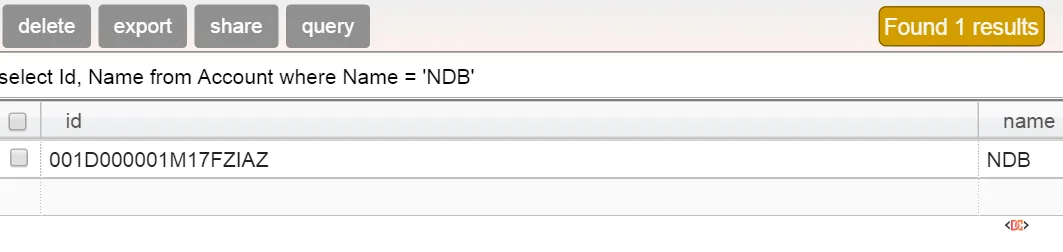
The Salesforce Developer Console is an indispensable tool for every developer and administrator. Its Query Editor allows you to quickly execute SOQL queries and view data in a neat table format. However, there is one glaring omission that has frustrated the community for years: there is no native "Export" button to download your results as a CSV or Excel file.
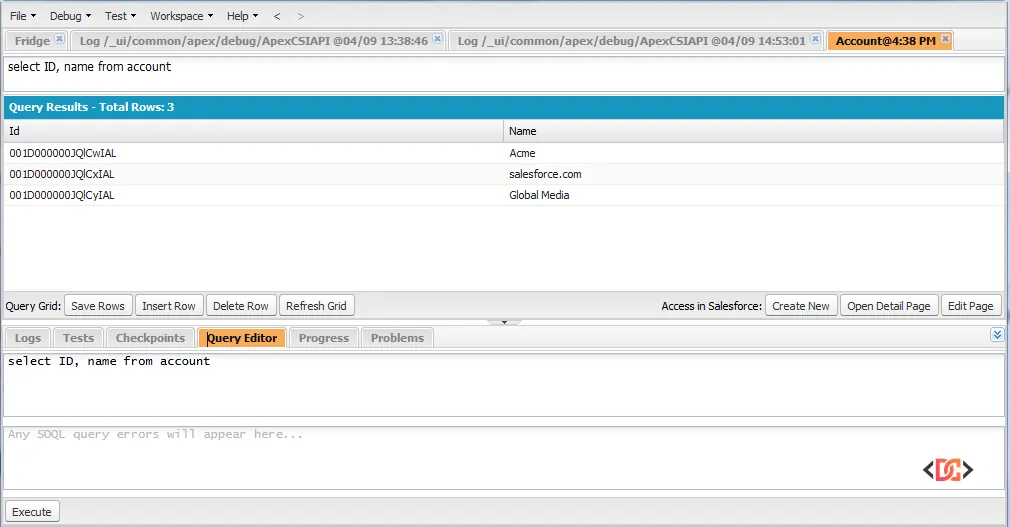
Whether you are debugging data issues or performing a quick audit, you often need that data in a spreadsheet. While you could turn to heavy-duty tools like Data Loader, sometimes you just want to export what is right in front of you. In this guide, we will explore several community-proven methods to export your Salesforce Developer Console query results efficiently.
Method 1: The JavaScript Bookmarklet (The Fastest Way)
If you want a solution that feels native to the browser, a JavaScript bookmarklet is your best friend. This method allows you to click a single button in your bookmarks bar to trigger a CSV download of whatever is currently visible in your Query Editor.
How to Set It Up
- Create a new bookmark in your browser (Chrome is recommended).
- Name it something like "SFDC Export."
- In the URL field, paste the following code:
javascript:(function(){function e(e){var t=new RegExp(/[/"]/g),n=e.replace(t,"“"),t=new RegExp(/\<[^\<]+\>/g),n=n.replace(t,"");return""==n?"":'"'+n+'"'}for(var t=document.evaluate("//div[@id='editors-body']/div[not(contains(@style,'display:none') or contains(@style,'display: none'))]//table/tbody/tr",document,null,0,null),n=[];row=t.iterateNext();){for(var o=row.getElementsByTagName("td"),a=[],r=0;r<o.length;r++)a.push(e(o[r].textContent));n.push(a)}for(var d="data:text/csv;charset=utf-8,filename=download.csv,",l=[],r=0;r<n.length;r++)l.push(n[r].join(","));d+=l.join("\r\n");var c=document.createElement("a");c.setAttribute("href",encodeURI(d)),c.setAttribute("download","dev_console.csv"),document.body.appendChild(c),c.click()})();
How to Use It
Simply run your query in the Developer Console, wait for the results to load, and click your new bookmark. Your browser will immediately download a file named dev_console.csv containing your data.
Method 2: Using Salesforce Workbench
When the Developer Console's limitations (like the 2,000-row display limit) become a hurdle, the Salesforce Workbench is the gold standard. It is a web-based suite of tools that interacts with your Salesforce organization via the API.
Steps to Export via Workbench:
- Log in to Workbench using your Salesforce credentials.
- Navigate to Queries > SOQL Query.
- Select the object you want to query.
- Choose "Bulk CSV" as the View As option instead of "List."
- Enter your SOQL query and click Query.
Workbench will process the request as a Bulk API job, allowing you to download the entire result set once finished. This is significantly more robust than the Developer Console for large datasets.
Method 3: The CSS "Quick and Dirty" Hack
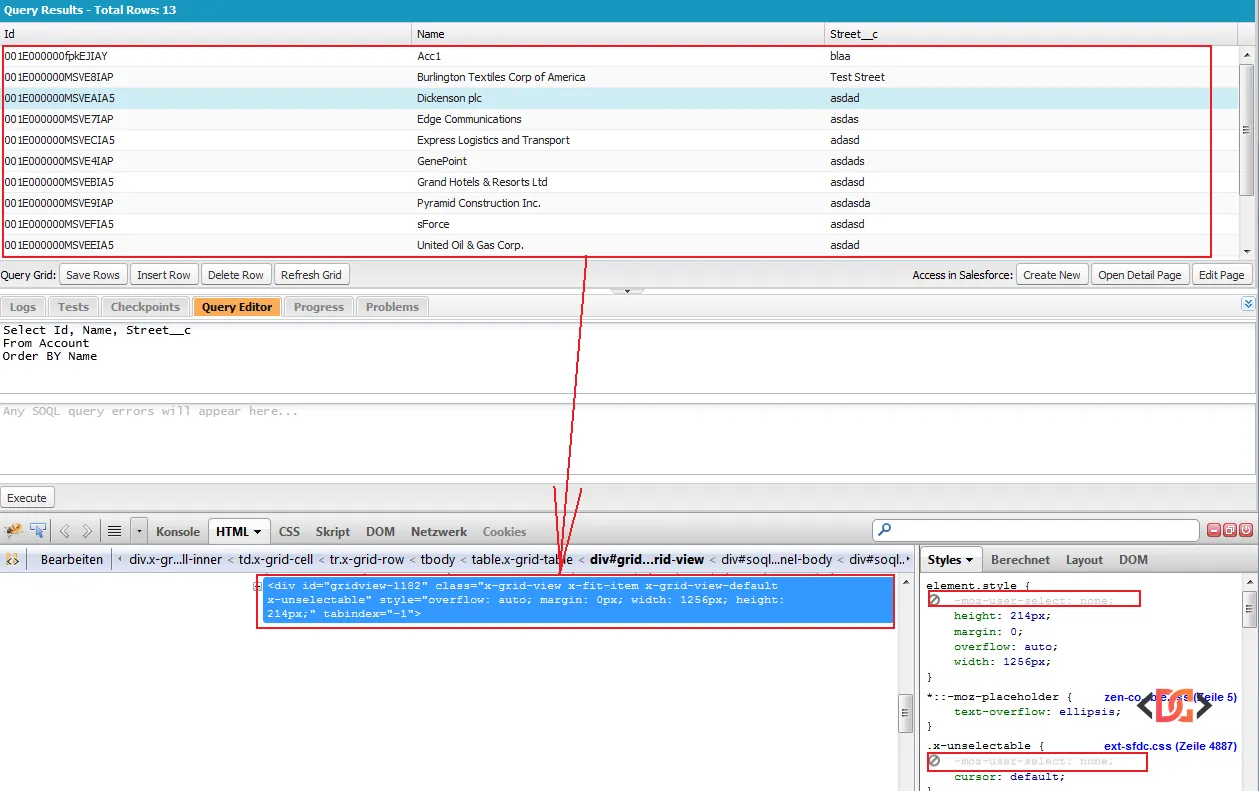
If you don't want to use external tools or scripts, you can use a simple CSS trick to make the Developer Console's table selectable. By default, the console uses CSS to prevent text selection, which is why you can't just highlight and copy the rows.
Steps to Copy-Paste:
- Run your query.
- Press F12 to open your browser’s Developer Tools.
- Find the container div for the results (usually has an ID starting with
gridview). - In the "Styles" pane, look for
-webkit-user-select: noneor-moz-user-select: noneand uncheck it (or change the value totext).
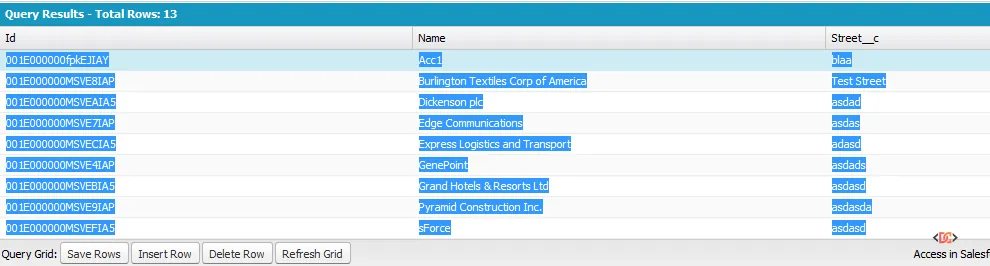
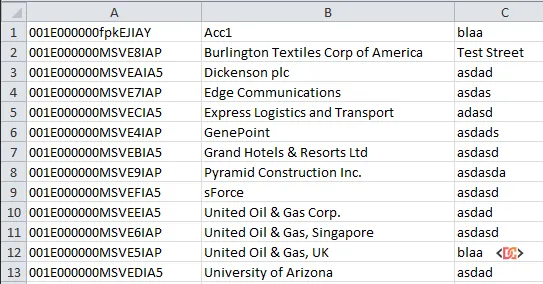
- You can now highlight the rows with your mouse, copy them, and paste them directly into Excel.
Method 4: Third-Party Extensions and IDEs
Several community-created tools provide a better UI for data extraction. If you perform exports frequently, these are worth investigating:
- SFDC Dev Console Data Exporter: A Chrome extension specifically designed to add an export button to the console UI.
- Aside.io: A cloud-based IDE for Salesforce that includes a powerful query editor with a native "Export to CSV" feature.
- FuseIT SFDC Explorer: A free desktop application that allows for sophisticated querying and direct clipboard/CSV exports.
Common Pitfalls and Best Practices
The 2,000 Row Limit
The Developer Console Query Editor only displays up to 2,000 rows. If your query returns 50,000 records, any browser-based script or copy-paste method will only capture the first 2,000. For anything larger, you must use Workbench or the Salesforce Data Loader.
Data Privacy and Security
When using third-party browser extensions or external sites like aside.io, ensure they comply with your company's security policies. Since these tools require access to your Salesforce session, they can theoretically access your data. Workbench is generally considered safe as it is maintained by Salesforce community members and hosted on Heroku, but always verify with your IT department.
Handling Special Characters
When using the JavaScript snippet provided above, be mindful of fields containing commas or newlines. The script includes basic logic to handle double quotes, but complex text fields might still cause formatting issues in Excel. Always give your CSV a quick once-over after exporting.
Frequently Asked Questions
Why doesn't the Developer Console have an export button?
Salesforce designed the Developer Console primarily as a debugging and development tool, not a data management tool. For data extraction, Salesforce encourages the use of Reports, the Data Export service, or the API-based Data Loader.
Can I export results from the "Execute Anonymous" window?
No, the "Execute Anonymous" window only returns debug logs. To export data, you must use the "Query Editor" tab. If you are calculating data via Apex that isn't stored in an object, consider using System.debug() to print CSV-formatted strings to the log and then extracting them from the log file.
Is there a way to increase the 2,000-row limit in the console?
Currently, no. The 2,000-row limit is a hard-coded UI limit within the Developer Console. For larger datasets, the API is the only path forward.
Wrapping Up
While Salesforce hasn't given us a native export button in the Developer Console, the community has provided several excellent workarounds. For a quick one-off export, the JavaScript bookmarklet is the most efficient choice. For larger, more complex data needs, Workbench remains the most reliable tool in a developer's arsenal.
By choosing the right tool for the job, you can save hours of manual data entry and get back to what matters most: building great solutions on the Salesforce platform.