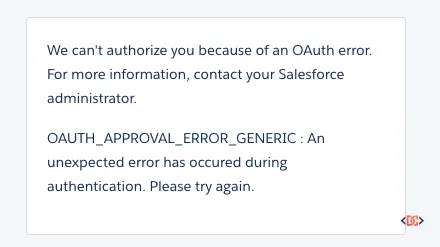
When you are developing mobile or web applications that integrate with Salesforce, few things are more frustrating than a generic error message. You have configured your Connected App, updated your Consumer Key, and set your Callback URL, only to be met with the dreaded OAuth_Approval_Error_Generic.
This error is notoriously unhelpful because it acts as a catch-all for various configuration mismatches between your application and the Salesforce platform. Whether you are using the Salesforce Mobile SDK for iOS or Android, or building a custom integration, this guide will walk you through the most common causes and the exact steps to resolve them.
Understanding the OAuth_Approval_Error_Generic
In the context of Salesforce OAuth 2.0 flows, this error typically occurs during the authorization phase. It indicates that the Salesforce authorization server received a request that it cannot fulfill, but the specific reason doesn't fall into a more defined error category like invalid_client or redirect_uri_mismatch.
Most often, this happens right after you have transitioned from a default or sample Connected App to a custom one. If you have recently updated your Consumer Key or Consumer Secret and suddenly find your users locked out, the issue usually lies in the fine print of your Connected App settings.
Solution 1: Verifying Your OAuth Scopes
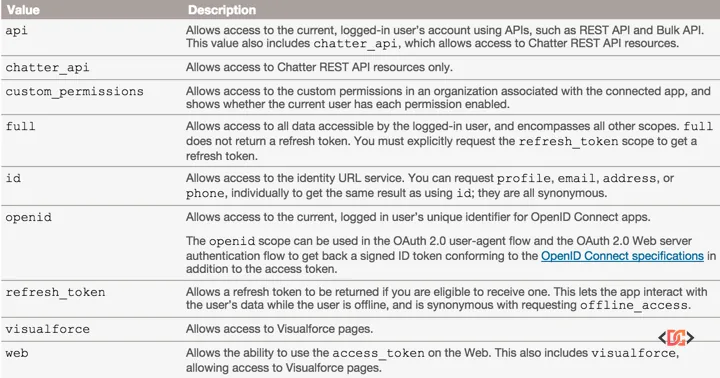
The most common culprit for the OAuth_Approval_Error_Generic is a misconfiguration of OAuth scopes. Scopes define what the application is allowed to do on behalf of the user. If your application requests a scope that isn't explicitly allowed in the Connected App definition, Salesforce will throw a generic error.
For most mobile applications using the Salesforce Mobile SDK, you must include a minimum set of scopes to ensure a successful handshake. At a minimum, ensure your Connected App includes:
- Access and manage your data (api)
- Provide access to your data via the Web (web)
- Perform requests on your behalf at any time (refresh_token, offline_access)
Without the refresh_token scope, the Mobile SDK cannot maintain a persistent session, often leading to immediate authorization failures.
How to Update Scopes:
- Navigate to Setup in Salesforce.
- Search for App Manager.
- Find your Connected App and select Edit.
- Scroll to the API (Enable OAuth Settings) section.
- Add the required scopes to the Selected OAuth Scopes list.
- Save the changes. (Note: It can take up to 10 minutes for changes to propagate across Salesforce servers).
Solution 2: Matching Requested Scopes with App Configuration
Another frequent cause is a mismatch between the scopes defined in your application code and the scopes defined in the Salesforce Connected App. If your code initiates an authorization request with a scope parameter that includes values not found in the Connected App, the process will fail.
For example, if your authorization URL looks like this:
https://login.salesforce.com/services/oauth2/authorize?response_type=code&client_id=YOUR_KEY&scope=full
But your Connected App only has api and web selected, you will trigger the generic approval error. Ensure that the scope string in your SFSDK configuration or manual OAuth URL perfectly matches or is a subset of the scopes allowed in the Salesforce Setup menu.
Solution 3: Adjusting IP Relaxation and Security Policies
Salesforce security policies can sometimes block OAuth requests if the user's IP address isn't trusted or if the Connected App policies are too restrictive. If your scopes are correct but you still see the error, check your IP relaxation settings.
- Go to Setup > Connected Apps > Manage Connected Apps.
- Click on the name of your app (not Edit).
- Click Edit Policies.
- Under the OAuth Policies section, find IP Relaxation.
- Change this to Relax IP restrictions.
This is particularly helpful during the development phase when you may be testing from various networks or mobile data connections that do not have static IP addresses.
Solution 4: Handling "Uninstalled" Connected App Restrictions
In recent security updates, Salesforce tightened the rules regarding "uninstalled" connected apps. If a user who is not a System Administrator attempts to log in to a Connected App that hasn't been explicitly installed or authorized in the org, they may encounter the generic error.
To fix this, you can enable a specific permission for your users: 1. Create a Permission Set. 2. Navigate to System Permissions. 3. Check the box for Approve Uninstalled Connected Apps. 4. Assign this Permission Set to the affected users.
This allows users to authorize the app even if the administrator hasn't pre-approved the specific version of the Connected App in that environment.
Solution 5: Troubleshooting via Salesforce CLI
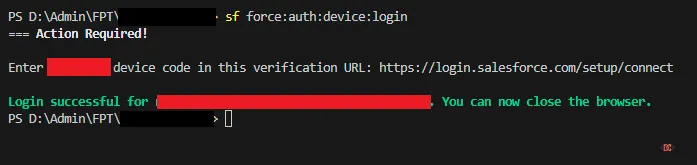
If you are a developer working with the Salesforce CLI and encounter this error during the authorization flow, you might find success using the device login flow instead of the standard web login. The device flow can bypass certain browser-based redirect issues.
Run the following command in your terminal:
sf org login device
(Note: If you are using the older toolset, the command is sfdx force:auth:device:login).
Salesforce will provide a user code and a verification URL (e.g., https://login.salesforce.com/setup/connect). Navigate to that URL, enter the code, and approve the access. This often resolves environment-specific issues where the browser redirect fails to communicate back to the CLI.
Frequently Asked Questions
Why does the error persist after I fixed the scopes?
Salesforce Connected App changes are not instantaneous. The metadata needs to replicate across the global Salesforce infrastructure. It is common to wait 5–10 minutes after saving your Connected App before the changes take effect. Additionally, clear your mobile app's cache or delete and reinstall the app to ensure it isn't using cached, stale credentials.
Does the Callback URL have to match exactly?
Yes. While a mismatch usually results in a specific redirect_uri_mismatch error, in some complex scenarios involving the Mobile SDK, it can manifest as a generic error. Ensure your Success URL in the Mobile SDK config matches the Callback URL in the Connected App character-for-character.
Can IP restrictions on a User Profile cause this?
Yes. If a user's Profile has restricted login hours or restricted IP ranges, the OAuth flow will fail. Always check the "Login History" on the User record in Salesforce Setup to see if a more specific login failure is being logged there.
Wrapping Up
The OAuth_Approval_Error_Generic is a hurdle that almost every Salesforce developer faces at some point. By systematically checking your OAuth Scopes, ensuring your Authorization URL matches your config, and relaxing IP Policies, you can resolve the vast majority of these issues.
Remember to always include the refresh_token scope for mobile applications and give the Salesforce platform a few minutes to process any changes you make in the Setup menu. With these steps, you'll have your integration back up and running in no time.