
Managing membership registrations often requires the flexibility to offer promotional codes or discounts. While the CiviDiscount extension is a powerful tool for standard CiviCRM contribution pages, many developers prefer using the Webform CiviCRM module in Drupal due to its superior UI flexibility and multi-page capabilities.
If you have ever wondered how to apply a discount code within a Webform without relying on the full CiviDiscount infrastructure, you are in the right place. In this guide, you will learn how to use native Drupal Webform functionality to emulate discount codes, allowing users to reduce their membership fees dynamically based on a code they enter.
Why Emulate CiviDiscount in Webform?
Using Webform CiviCRM to handle discounts gives you granular control over the user experience. Instead of a standard checkout process, you can build complex logic that changes prices based on user input, contact history, or specific promotional strings. This method is particularly useful when you want to keep your technical stack lean or when you need to apply logic that the standard extension doesn't easily support.
By leveraging the Webform Conditionals system, you can effectively "override" the default membership fee values before they are processed by CiviCRM. This ensures that the user sees the correct price and that the financial transaction recorded in CiviCRM matches the discounted amount.
Step 1: Create the Discount Code Field
The first step is to create a place for your users to enter their code. You should use a native Webform field for this, rather than a CiviCRM-specific field, as this data doesn't necessarily need to be stored in your CRM database.
- Navigate to the Webform tab of your Drupal node.
- Add a new component of type Textfield.
- Label it "Discount Code" (or something similar).
- Position this field at the top of your form, typically near the Membership Type selection, so users can see the price change immediately after entering their code.
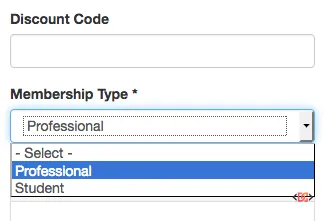
Step 2: Expose the Membership Fee to the Webform
By default, Webform CiviCRM handles membership fees behind the scenes based on the Membership Type settings. To manipulate the price, you must explicitly expose the fee field to the Webform interface.
- Click on the CiviCRM tab of your Webform.
- Navigate to the Memberships section.
- Locate the Membership Fee checkbox and enable it.
This action creates a numeric field on your Webform that represents the price. While you might eventually want to hide this field using CSS or make it read-only, it must be "present" on the form for the conditional logic to interact with it.
Step 3: Configure Conditional Logic
This is where the magic happens. You will use the Conditionals tab in Webform to create rules that change the value of the Membership Fee field based on the text entered in the Discount Code field.
- Go to the Webform tab and click on Conditionals.
- Create a new rule:
IF "Discount Code" IS "YOUR_CODE_HERE". - Set the action:
THEN "Membership Fee" IS "NEW_PRICE".
For example, if your standard Student Membership is $50 and your discount code "STUDENT2024" grants a $20 discount, your conditional would set the Membership Fee to $30.
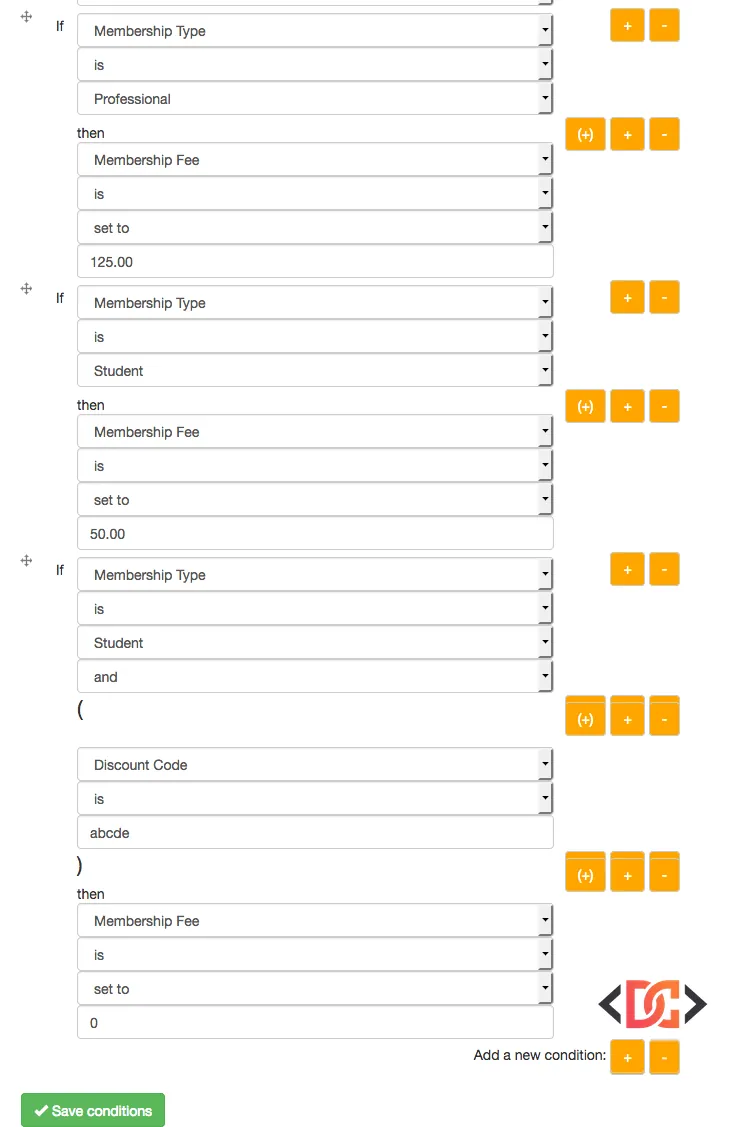
Step 4: Testing the User Experience
It is vital to test your form to ensure the logic triggers correctly for different scenarios. Here is how the form should behave if configured properly:
Scenario A: No Discount Code
When a user selects a membership type (e.g., Professional Membership) and leaves the discount field blank, the default price should remain unchanged.
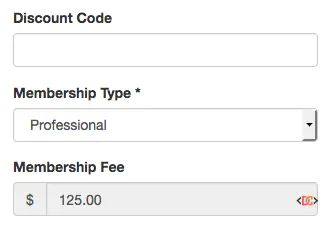
Scenario B: Standard Selection without Code
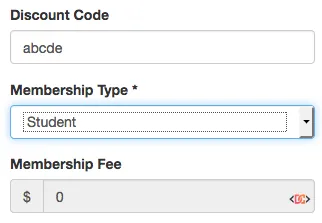
If a user selects a different tier, like a Student Membership, the fee should update to its respective default value.
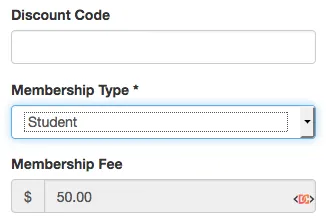
Scenario C: Valid Discount Code Applied
As soon as the user types the correct code, the conditional logic should fire instantly (via AJAX), updating the Membership Fee field to the discounted rate.
Advanced: Managing Large Lists of Discount Codes
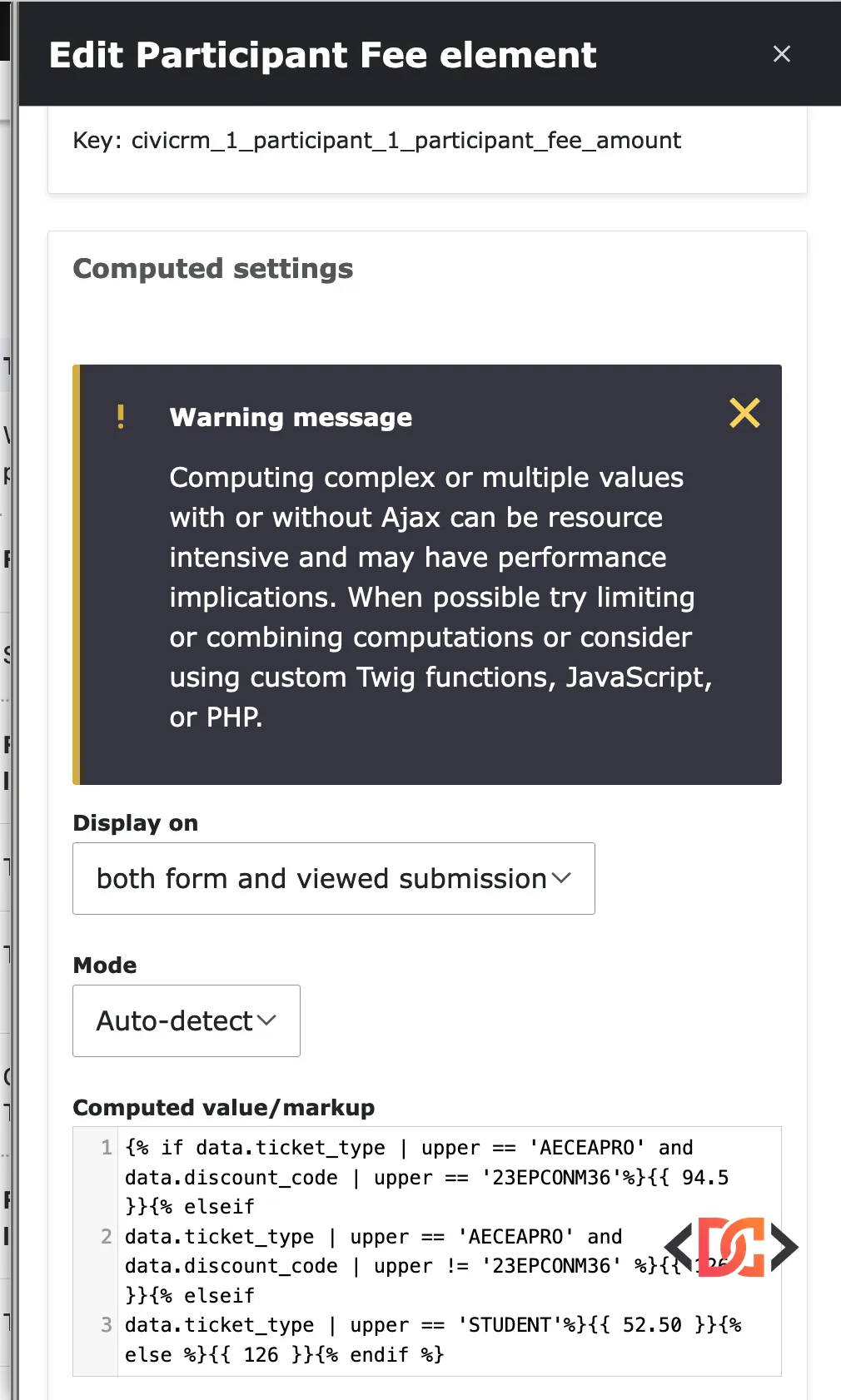
If you have dozens or hundreds of discount codes, creating a separate conditional rule for each one in the Webform UI can become cumbersome. For larger implementations, consider using a Select List component for the codes (hidden or styled to look like a text field) or leveraging the Webform Rules module.
Another efficient way to manage a larger list is to use a lookup table or a custom module that validates the string against a CiviCRM group or tag. However, for most organizational needs, the manual conditional approach is the most stable and easiest to maintain.
Frequently Asked Questions
Can I apply percentage-based discounts instead of flat rates?
Yes, but it requires a slightly different approach. Instead of setting the field to a static value, you would use the Webform Calculator module or a small snippet of JavaScript to multiply the base Membership Fee by your discount factor (e.g., 0.8 for 20% off) and then populate the result into the CiviCRM Fee field.
Is this method secure?
Because Webform Conditionals operate on the client side (with server-side validation in Drupal), savvy users could technically inspect the source code to find valid strings. If your discount codes are highly sensitive or involve high monetary values, ensure you are using a server-side validation hook (like hook_webform_validation) to verify the code before the form is submitted.
Does this work with multiple memberships on one form?
Yes. You simply need to ensure that you expose the "Membership Fee" field for each membership entity enabled in your CiviCRM tab and create corresponding conditional rules for each.
Wrapping Up
Emulating CiviDiscount in Webform CiviCRM is a brilliant way to leverage the native strengths of Drupal to enhance your CRM's functionality. By exposing the Membership Fee field and using Webform’s built-in conditional logic, you create a seamless, responsive experience for your members without the overhead of complex extensions.
Key Takeaways: - Always expose the Membership Fee field in the CiviCRM tab to allow manual overrides. - Use Webform Conditionals to handle the logic between the user's input and the final price. - Test multiple scenarios to ensure that selecting different membership types doesn't break the discount logic. - For high-security needs, supplement this method with server-side validation.
By following these steps, you can provide a professional and flexible registration process that encourages membership growth through targeted promotions.