
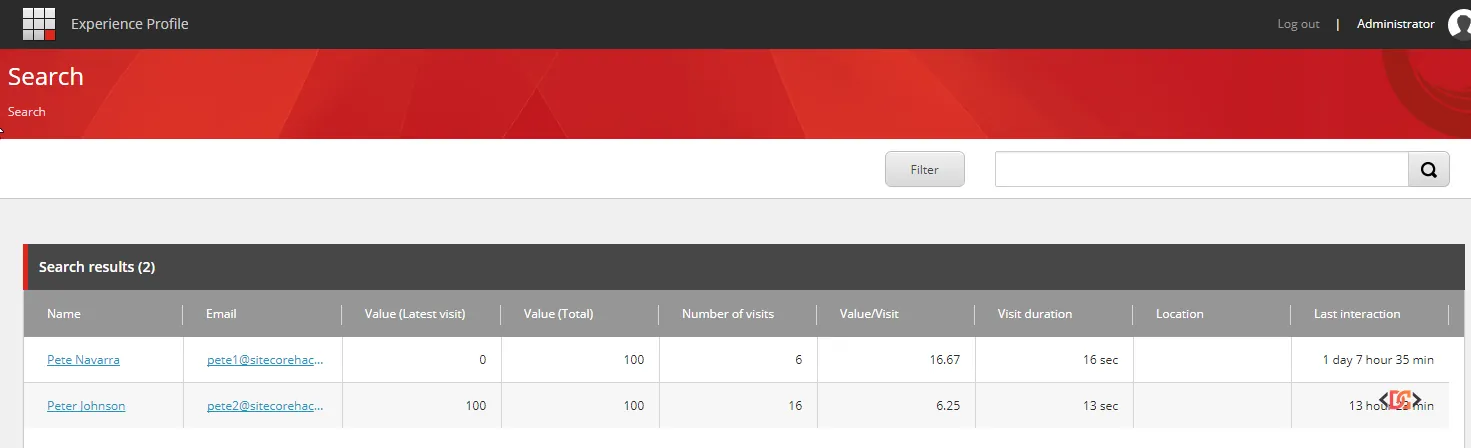
Setting up a Sitecore xP1 topology on Azure PaaS is a significant milestone for any development team. However, it is common to encounter a frustrating scenario: your xConnect instance is successfully capturing contacts, goals are firing, and the Experience Profile is populating, yet your Experience Analytics dashboards remain completely empty.
You might see stats on the Sitecore Launchpad, but when you click into Experience Analytics, the graphs show no visits or interactions. This discrepancy often stems from how Sitecore processes segmented data versus global aggregates. In this guide, you will learn how to diagnose and fix the root causes of missing analytics data in Sitecore 9.0.1 and later.
Identifying the Symptoms of Missing Analytics Data
When troubleshooting Experience Analytics, the first step is to check if the issue is with data collection or data reporting. If you can see contacts in the Experience Profile but nothing in Analytics, your xConnect collection is likely working, but the aggregation process is failing.
A key indicator of this issue can be found in your browser's Network tab. When Experience Analytics loads, it makes XHR requests to the reporting API. If you notice requests using specific negative integers instead of the string "all", you are looking at segment-specific queries.
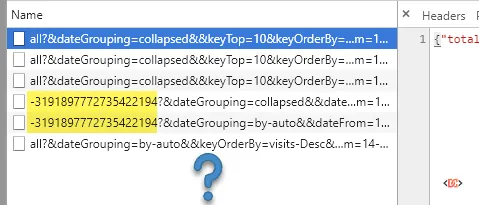
If these requests return empty results while the Launchpad shows data, the problem is almost certainly that your Reporting Database is missing its Segments. Without defined segments, Sitecore cannot categorize interactions into the buckets required for the Analytics dashboard.
The Root Cause: Empty Segment Tables
In a scaled Azure xP1 environment, the Reporting database contains several tables that must be populated for the dashboards to function. If you query your Reporting SQL database and find that the Segments table is empty, the aggregation engine has nothing to map your interactions to.
This often happens because the Marketing Definitions were not successfully deployed. Even if you clicked "Deploy" in the Control Panel, the process may have silently failed or completed instantly without actually moving data. This is frequently caused by a missing dependency: the Link Database.
The Solution: Mandatory Post-Deployment Steps
To resolve the empty dashboard issue, you must perform a specific sequence of maintenance tasks. In Sitecore 9, the deployment of Marketing Definitions relies heavily on the Link Database to resolve relationships between items. If the Link Database is not built, the definitions will not deploy to the Reference Data service and the Reporting database.
Follow these steps in order to restore your analytics:
1. Rebuild the Link Database
Navigate to the Control Panel > Database > Rebuild Link Databases. Select the master and core databases. This ensures that Sitecore understands the relationships between marketing items and their parent segments.
2. Rebuild Search Indexes
While in the Control Panel, go to Indexing Manager and rebuild all indexes, specifically focusing on sitecore_master_index and sitecore_marketing_definitions_master.
3. Deploy Marketing Definitions
Navigate to Control Panel > Analytics > Deploy Marketing Definitions. Click 'Deploy' for all items (Goals, Outcomes, Segments, etc.). With the Link Database now populated, these definitions will correctly propagate to your Reference Data database.
4. Verify Connection Strings
If you are using self-signed certificates in an Azure environment, ensure your connection strings in the CM and Processing roles include the following parameter:
AllowInvalidClientCertificates=true
Tracking Anonymous Users in Sitecore 9
If you have followed the steps above and still see no data, you may be encountering a configuration default introduced in Sitecore 9. By default, Sitecore 9 and 9.2+ often have anonymous user indexing disabled to save resources.
To ensure your analytics reflect all traffic, you must enable anonymous tracking in your xConnect instance. You will need to update the sc.Xdb.Collection.IndexerSettings.xml file in two locations:
App_data\Config\sitecore\SearchIndexer\sc.Xdb.Collection.IndexerSettings.xmlApp_Data\jobs\continuous\IndexWorker\App_Data\config\sitecore\SearchIndexer\sc.Xdb.Collection.IndexerSettings.xml
Ensure the IndexAnonymousContactData setting is set to true:
<Settings>
    <Sitecore>
        <Xdb>
            <Collection>
                <Indexer>
                    <IndexAnonymousContactData>true</IndexAnonymousContactData>
                </Indexer>
            </Collection>
        </Xdb>
    </Sitecore>
</Settings>
Frequently Asked Questions
Why does the Launchpad show data but Analytics is empty?
The Launchpad often uses high-level aggregates that don't depend on complex segment definitions. Experience Analytics, however, requires the Segments and Dimensions tables in the Reporting database to be fully populated via the Marketing Definition deployment process.
Do I need to rebuild the Reporting Database?
Only if you had interactions processed before your segments were deployed. If you deploy segments and then generate new traffic, that new traffic should appear. If you need to see historical data, a Reporting Database rebuild will be necessary to re-process those interactions into the now-existing segments.
How long does it take for data to appear in Analytics?
In a standard configuration, Sitecore flushes the session to xConnect when the session ends. Once the session is in xConnect, the Processing role aggregates the data. You can usually see data within 20-30 minutes, or you can manually end the session via code to speed up testing.
Wrapping Up
Missing Experience Analytics data in Sitecore 9 is rarely caused by a single bug; it is usually the result of a missing step in the post-deployment checklist. By ensuring your Link Database is rebuilt before deploying Marketing Definitions, you provide the necessary foundation for the aggregation engine to function.
Always remember to check your xConnect indexer settings if you are missing anonymous interaction data, and verify that your certificates are properly trusted across all scaled roles. With these steps, your dashboard will transform from a series of empty graphs into a powerful tool for digital insights.