
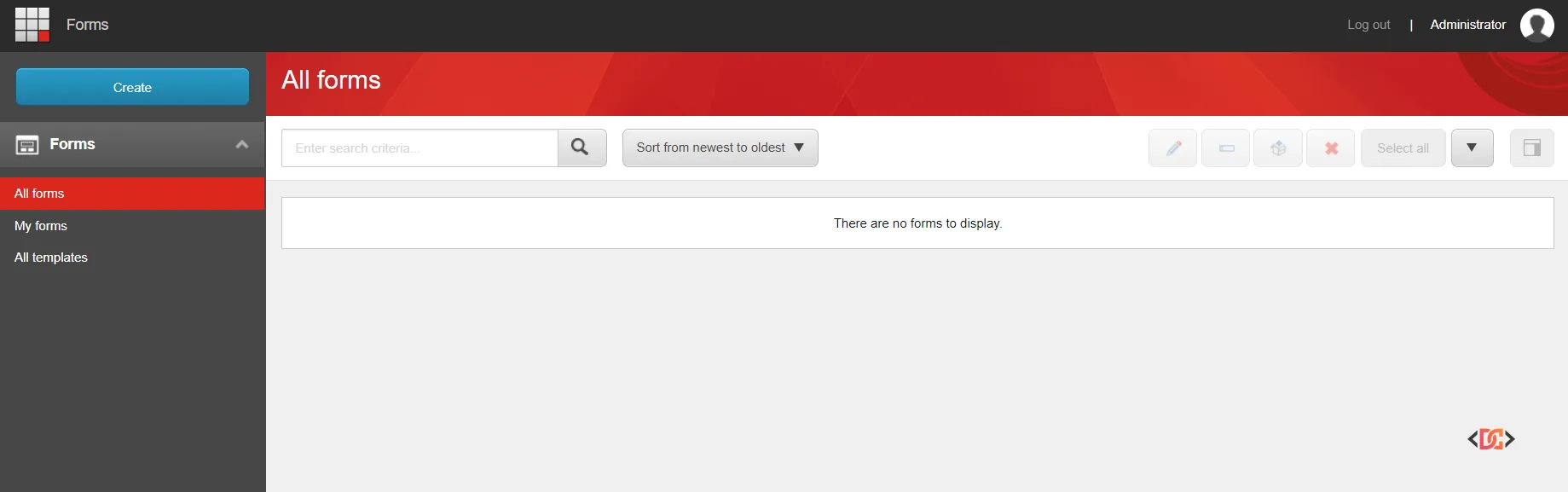
One of the most frustrating experiences for a Sitecore developer or content author is opening the Sitecore Forms application only to see the message: "There are no forms to display." This occurs even when you can clearly see the form items existing within the Content Tree.
If you find yourself switching between "All forms," "My forms," and "All templates" only to find an empty grid, you aren't alone. This is a common synchronization or indexing issue that can happen in Sitecore 9 through Sitecore 10.x. In this guide, we will walk through the proven steps to restore your forms and ensure your dashboard reflects the true state of your content.
Understanding Why Forms Disappear
Unlike the Content Editor, which reads directly from the database, the Sitecore Forms dashboard relies heavily on Search Indexes (specifically the sitecore_master_index) and the Sitecore Services Client (SSC) API. If the search index is out of date, or if the API is blocked by browser permissions, the dashboard will fail to populate.
1. Rebuild Your Search Indexes
The most common culprit for missing forms is a stale or corrupted search index. Since the Forms application queries Solr (or Azure Search) to populate the grid, any discrepancy there will result in an empty view.
How to fix it:
1. Log in to Sitecore and navigate to Control Panel.
2. Click on Indexing Manager.
3. Select the sitecore_master_index (and sitecore_web_index if you are checking the live site).
4. Click Rebuild.
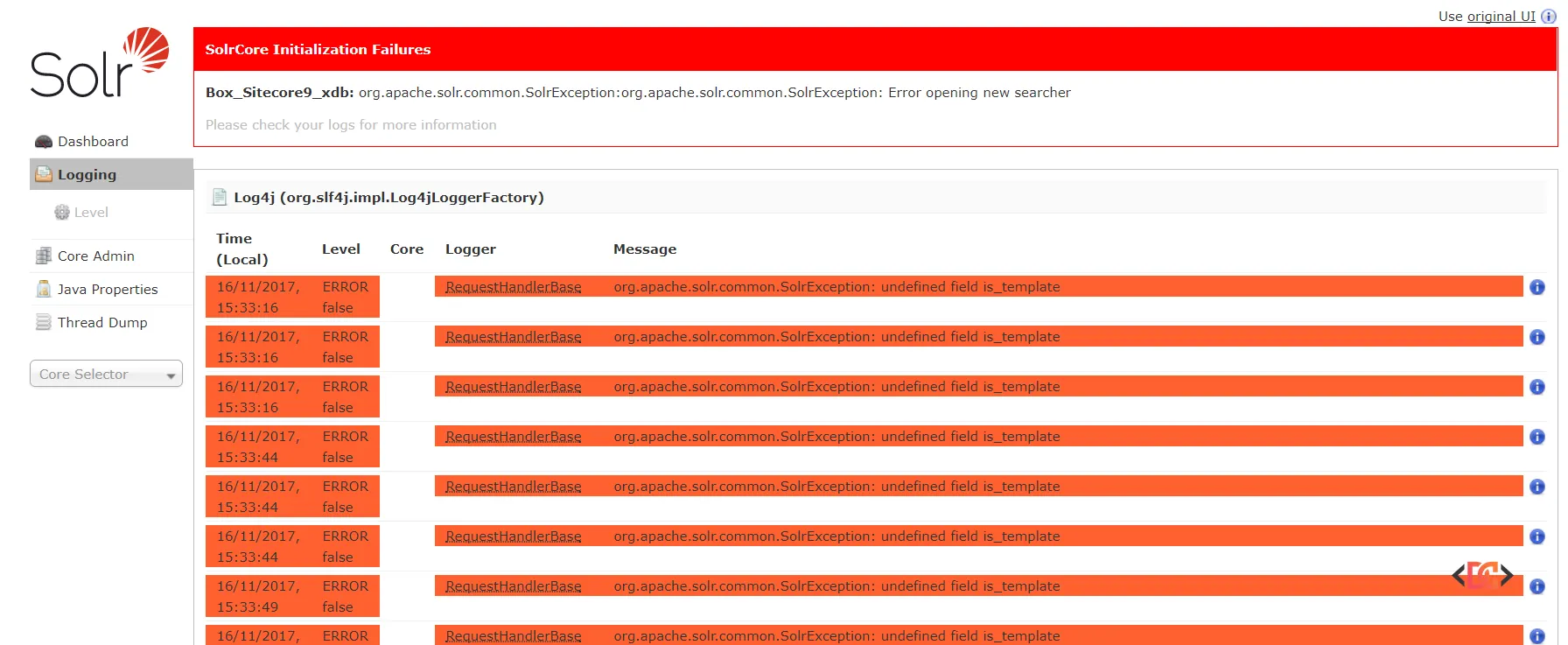
Often, check the Solr Admin page for any logged errors. If Solr is down or a core is locked, Sitecore won't be able to fetch the list of forms.
2. Resolve 403 Forbidden API Errors
Sometimes the issue isn't the data, but the communication between your browser and the Sitecore server. Some developers have noted that the Forms dashboard remains empty because the underlying API request returns a 403 Forbidden error.
If you open your Chrome Developer Tools (F12) and see an error for a URL like this:
/sitecore/api/ssc/forms/formdesign/formdesign/languages?sc_formmode=edit...
This indicates an authentication or session issue.
The Solution: - Clear Browser Cookies: Stale authentication cookies can interfere with Sitecore Services Client requests. Clear your cookies for the specific domain and reload. - Use Incognito Mode: This is the fastest way to verify if the issue is browser-cache or cookie-related.
3. Use the Developer Ribbon to Rebuild Items
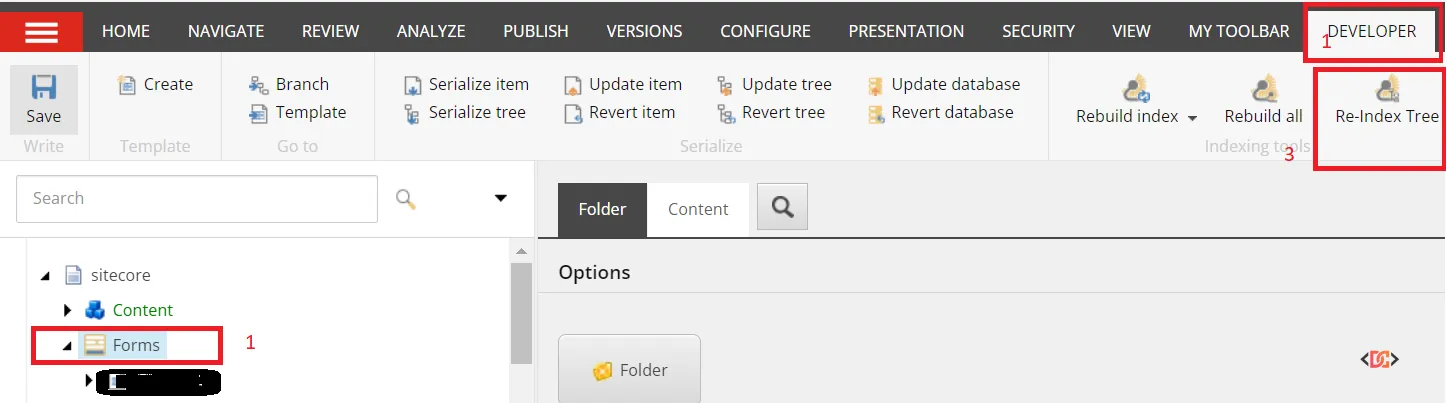
If rebuilding the entire index seems like overkill or doesn't work, you can force Sitecore to re-index the specific folder where forms are stored. This is particularly helpful after an upgrade, such as moving to Sitecore 10.2.
- Open the Content Editor.
- Navigate to
/sitecore/Forms. - If you don't see the Developer tab in the top ribbon, right-click the ribbon and enable it.
- With the Forms folder selected, click Rebuild in the Developer tab.
4. The "Rename" Workaround
In some edge cases, specifically reported in Sitecore 9, a form might be "stuck" in a way that a standard index rebuild doesn't catch. A clever community workaround is to manually trigger an item update.
The Steps: 1. Locate the missing form in the Content Tree. 2. Rename the form (e.g., add a "-1" to the end). 3. Save the item. 4. Rename it back to the original name.
This action forces Sitecore to update the item's statistics and re-index that specific entry, often making it reappear in the Forms application immediately.
Common Mistakes to Avoid
- Ignoring the Logs: Always check your Sitecore logs in
/App_Data/logs. While the user might not see much, the logs often contain detailed Solr connection errors or permission denials. - Index Delay: Remember that in some configurations, indexing isn't instantaneous. Give the system a minute after a rebuild before refreshing the dashboard.
- Cache Overload: If you have made significant changes to item names or paths, clear the Sitecore cache via
/sitecore/admin/cache.aspxto ensure the API isn't serving stale data.
Frequently Asked Questions
Why are my forms visible in the Content Tree but not the Forms Designer?
The Content Tree reads directly from the Master database, while the Forms Designer dashboard relies on the Search Index. If the index is out of sync, the dashboard will appear empty.
Does this issue affect Sitecore 10.2 specifically?
While this can happen in any version from Sitecore 9 onwards, Sitecore 10.2 users frequently report this after upgrades. Rebuilding the Forms folder from the Developer menu is the most effective fix for this version.
Can clearing Sitecore cache fix this?
Yes, sometimes the Sitecore Services Client (SSC) caches responses. Clearing the cache via the admin folder or restarting the App Pool can resolve persistent display issues.
Wrapping Up
Missing Sitecore Forms are almost always a symptom of an indexing or communication gap rather than data loss. By following the hierarchy of fixes—starting with a Master Index Rebuild, moving to Browser Cache/Cookies, and finally using the Developer Rebuild tool—you can quickly restore visibility to your forms.
Always ensure your Solr instance is healthy and that your browser isn't blocking the Sitecore API calls. With these steps, you'll be back to building high-converting forms in no time.