
Effective error handling is the backbone of a great user experience in Salesforce. When you are building custom interfaces, you need a way to communicate clearly with your users—whether you are confirming a successful record update or flagging a validation error. Visualforce provides four distinct messaging components to handle these scenarios, but their names are so similar that it is easy to get confused.
In this guide, you will learn the exact differences between apex:message, apex:messages, apex:pageMessage, and apex:pageMessages. We will explore the technical nuances of each, look at real-world code examples, and determine the best use cases for your next development project.
Understanding the Static apex:pageMessage Component
The <apex:pageMessage> component is designed to display a single, static message using standard Salesforce formatting. Unlike other messaging components that listen for errors in the controller, you define the content of this message directly in your Visualforce markup.
This component is ideal for permanent notifications, such as a warning banner that appears whenever a user views a specific record type or a set of instructions at the top of a complex form. You have control over the 'severity' (which determines the icon and color) and the 'strength' (which determines the size and prominence).
<apex:page >
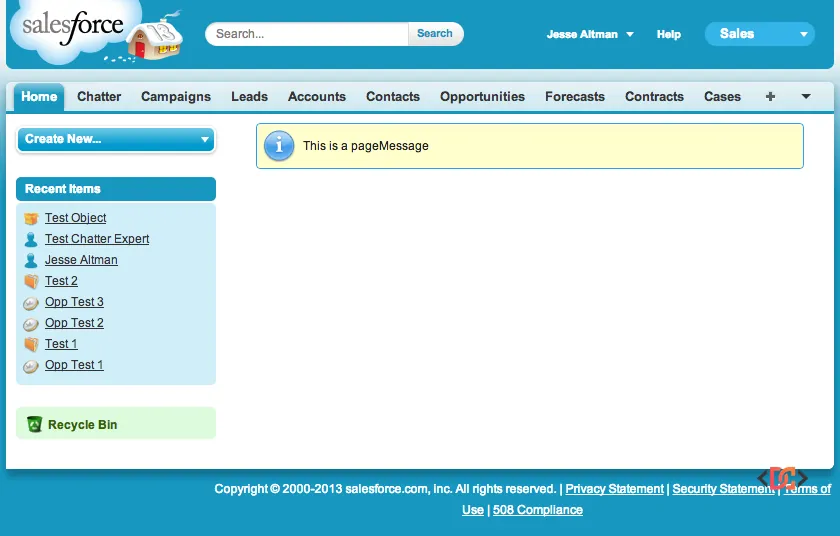
  <apex:pageMessage summary="This is a pageMessage" severity="info" strength="3"/>
</apex:page>
When rendered, a strength of 3 provides a large, prominent box:
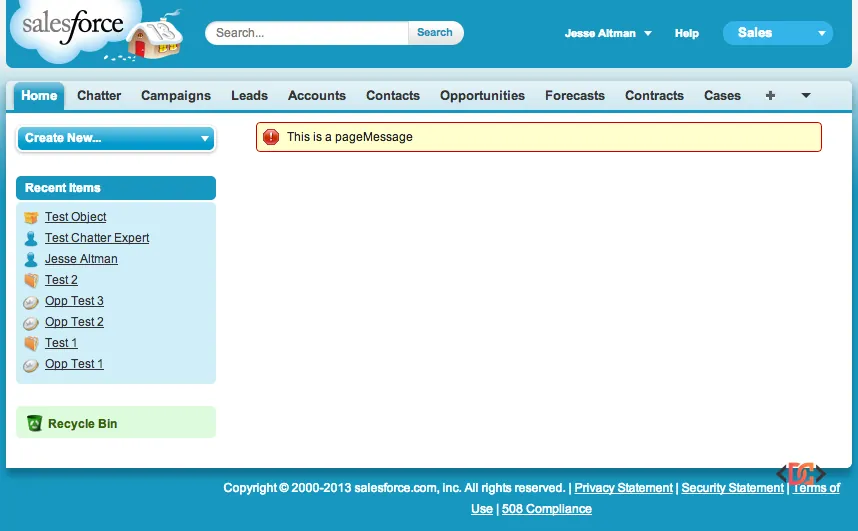
If you need something more subtle, you can decrease the strength and change the severity to indicate an error:
<apex:page >
  <apex:pageMessage summary="This is a pageMessage" severity="error" strength="1"/>
</apex:page>
Managing Dynamic Errors with apex:pageMessages
If you want to display errors that are generated dynamically during execution—such as DML exceptions or custom validation logic in your Apex controller—<apex:pageMessages> (plural) is your go-to tool. This component acts as a container that automatically catches and displays every message added to the ApexPages collection.
You will typically place this at the top of your page to ensure users see all relevant feedback in one centralized location. It handles the styling for you, grouping messages by severity.
<apex:page controller="TestMessageController">
  <apex:pageMessages />
</apex:page>
In your Apex controller, you would populate this component using the ApexPages.addMessage method:
public class TestMessageController {
    public TestMessageController() {
         ApexPages.addMessage(new ApexPages.Message(ApexPages.Severity.ERROR, 'This is apex:pageMessages'));
         ApexPages.addMessage(new ApexPages.Message(ApexPages.Severity.INFO, 'This is apex:pageMessages info'));
    }
}
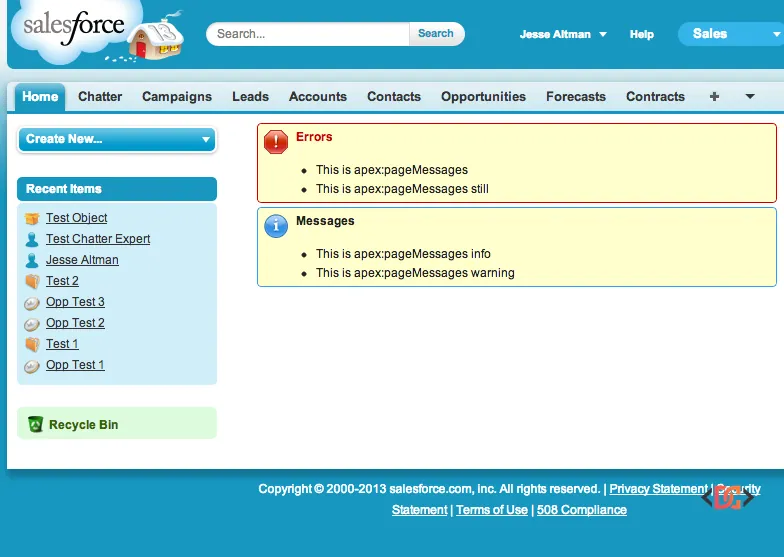
This component is a "catch-all." It is best practice to include it on almost every custom Visualforce page to ensure that system-generated errors (like required field missing or permission issues) are visible to the user rather than being hidden in the debug logs.
Targeted Field Feedback with apex:message
Sometimes, a general error message at the top of the page isn't enough. If you have a long form, you want to show the error right next to the field that needs correction. This is where <apex:message> (singular) comes in.
By using the for attribute, you can link the message component to a specific input component’s ID. This provides a surgical approach to validation.
<apex:page controller="TestMessageController">
    <apex:form >
      <apex:outputLabel value="Test String" />
      <apex:inputField value="{!test.Name}" id="test"/>
      <br/>
      <apex:message for="test"/>
    </apex:form>
</apex:page>
In your controller, you can target this specific field using the .addError() method on the SObject field itself:
public class TestMessageController {
    public Account test {get;set;}
    public TestMessageController() {
        test = new Account();
        test.Name.addError('The Name field is incorrect.');
    }
}
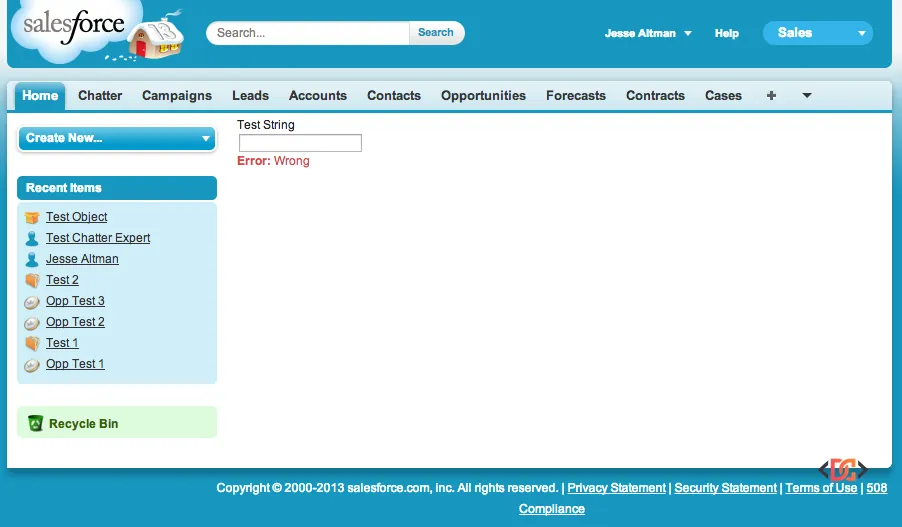
Note that the styling for apex:message is quite minimal. Salesforce expects that if you are placing messages manually next to fields, you may want to apply your own CSS to fit your specific layout.
Custom Layouts with apex:messages
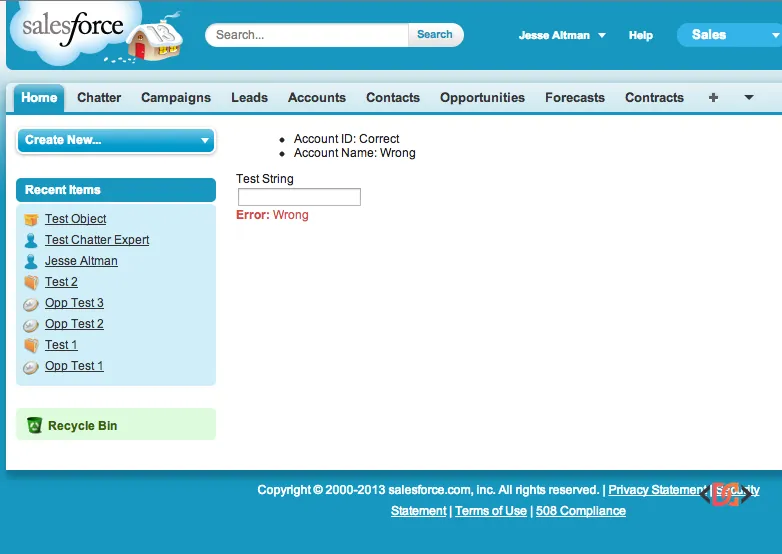
The <apex:messages> component is the unstyled sibling of apex:pageMessages. It retrieves all dynamic messages generated during the request, but instead of wrapping them in the heavy Salesforce "box" styling, it renders them as a simple bulleted list.
You should use <apex:messages> when you want full control over the UI. If you are using a third-party CSS framework like Bootstrap or the Salesforce Lightning Design System (SLDS) manually, this component provides the raw error data without the legacy Visualforce styles getting in your way.
<apex:page controller="TestMessageController">
    <apex:messages />
    <apex:form >
      <apex:inputField value="{!test.Name}" id="test"/>
    </apex:form>
</apex:page>
Comparing the Four Messaging Options
To help you choose the right component for your specific scenario, here is a quick breakdown of how they behave when used together:
| Component | Source | Styling | Best Use Case |
|---|---|---|---|
apex:pageMessage |
Static (Markup) | Full SFDC Style | Instructional banners and permanent alerts. |
apex:pageMessages |
Dynamic (Apex) | Full SFDC Style | Global error reporting at the top of a page. |
apex:message |
Dynamic (Apex) | Minimal | Specific field-level validation feedback. |
apex:messages |
Dynamic (Apex) | None (List) | When you need to apply custom CSS styling. |
Frequently Asked Questions
Why are my error messages not appearing on the page?
If you are using ApexPages.addMessage in your controller but nothing shows up, ensure that you have included either <apex:pageMessages /> or <apex:messages /> in your Visualforce markup. Without these tags, errors are only sent to the debug log.
Can I use these components with Lightning Experience?
Yes, these components work in Lightning Experience, but they will maintain their classic Visualforce look and feel. If you want your messages to look like native Lightning components, you should wrap your Visualforce logic in an SLDS-styled container or migrate the page to a Lightning Web Component (LWC).
How do I clear messages after a partial page update (AJAX)?
Messages persist for the duration of the request. If you are using <apex:actionFunction> or <apex:commandButton> with reRender, ensure that the messaging component's ID is included in the reRender attribute so it updates to reflect the new state of the ApexPages message collection.
Wrapping Up
Choosing the right messaging component in Visualforce depends entirely on the level of control you need and the source of the information. For most standard pages, a single <apex:pageMessages /> tag at the top of the form is sufficient. However, for a more refined user experience, combining it with field-specific <apex:message /> tags ensures your users always know exactly what needs to be fixed.
By mastering these four components, you can transform a frustrating, silent failure into a helpful, guided user journey.