When you are building a custom WordPress plugin, creating a professional-looking admin menu is essential for a great user experience. By default, when you use the add_menu_page() function to create a top-level menu, WordPress automatically adds the first submenu item with the exact same name as the parent menu.
While this is functional, you might want your first item to have a different name. For instance, you may want the main menu to be titled "Auction Reports" while the first item in the dropdown says "Recent Bids." This is exactly how WordPress handles its own menus—for example, the "Posts" menu has a first submenu item named "All Posts."
In this guide, you will learn how to customize that first submenu item label using two different approaches.
The Default WordPress Menu Behavior
When you register a top-level page, the syntax usually looks like this:
add_menu_page('Page Title', 'Menu Title', 'manage_options', 'my-menu-slug', 'my_callback_function');
As soon as you add secondary pages using add_submenu_page(), WordPress creates a duplicate of the parent menu as the first entry in the list, as seen below:
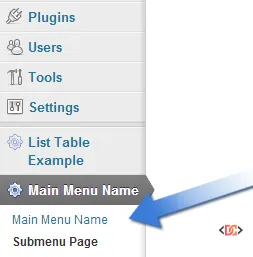
To achieve a more professional look, like the core WordPress dashboard, we need to override this default behavior.
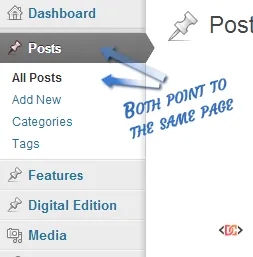
Method 1: Matching Slugs (The Recommended Approach)
The most efficient way to change the first submenu item name is to manually add a submenu page that uses the exact same menu slug as the parent page.
When WordPress detects a submenu item with the same slug as the parent, it replaces the auto-generated link with your custom definition. Here is how you can implement this in your plugin code:
add_action('admin_menu', 'my_menu_pages');

function my_menu_pages(){
    // Create the top-level menu
    add_menu_page('My Page Title', 'My Menu Title', 'manage_options', 'my-menu', 'my_menu_output' );

    // Add a submenu item with the SAME slug as the parent to rename it
    add_submenu_page('my-menu', 'Submenu Page Title', 'Whatever You Want', 'manage_options', 'my-menu', 'my_menu_output' );

    // Add additional submenu items
    add_submenu_page('my-menu', 'Submenu Page Title2', 'Whatever You Want2', 'manage_options', 'my-menu2', 'my_menu_output2' );
}
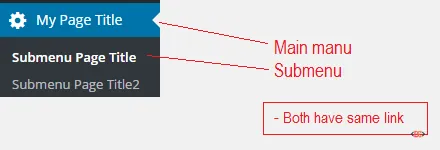
By ensuring the fifth parameter of the first add_submenu_page() matches the fourth parameter of add_menu_page(), you effectively rename that first entry. The result is a clean, customized menu:
Practical Example: Auction Reports Plugin
If you were building a reporting tool, your code might look like this to ensure the menu titles are descriptive and organized:
function actions_recent_bids_add_admin_page(){
    // Top level container
    add_menu_page(
          'Recent Bids',
          'Auction Reports',
          'manage_options',
          'wc-auction-reports',
          'actions_recent_bids_list',
          'dashicons-chart-area',
           56
    );

    // Renaming the first item from 'Auction Reports' to 'Recent Bids'
    add_submenu_page(
          'wc-auction-reports',
          'Recent Bids',
          'Recent Bids',
          'manage_options',
          'wc-auction-reports',
          'actions_recent_bids_list'
    );

    // Adding subsequent items
    add_submenu_page(
          'wc-auction-reports',
          'Customer Spending',
          'Customer Spending',
          'manage_options',
          'wc-acutions-customers-spendings',
          'acutions_customers_spendings_list'
    );
}
add_action('admin_menu','actions_recent_bids_add_admin_page');
Method 2: The Remove and Replace Strategy
In some complex scenarios, you might want to create a top-level menu item that acts solely as a container, or you might need to dynamically remove the auto-generated item. You can use the remove_submenu_page() function to strip away the default entry and then add your own.
This approach is useful if you want to completely decouple the parent menu's slug from the first visible submenu item.
function posts_sync_menu() {
    // Main Menu Item (acts as a holder)
    add_menu_page(
        'My Posts',
        'My Posts',
        'manage_options',
        'my-posts',
        '', // No callback needed if we are redirecting
        'dashicons-networking',
        6
    );

    // Add the actual page you want users to see first
    add_submenu_page(
        'my-posts',
        'My Posts Listing',
        'My Posts Listing',
        'manage_options',
        'my-posts-listing',
        'my_posts_callback'
    );

    // Remove the auto-generated parent sub-menu entry
    remove_submenu_page('my-posts', 'my-posts');
}
add_action('admin_menu', 'posts_sync_menu');
When using this method, the first item in the list will be your manually created "My Posts Listing" page, rather than a duplicate of the "My Posts" parent title.

Frequently Asked Questions
Why does WordPress repeat the menu name by default?
WordPress does this to ensure that the top-level menu item has a clickable destination in the submenu. This is helpful for mobile users and provides a consistent navigation experience across the dashboard.
Does changing the submenu name affect the URL slug?
Not necessarily. If you use Method 1 (matching slugs), the URL remains the same, but the display text in the menu changes. If you use Method 2, your URL will reflect the slug of the new submenu item you created.
Can I use different capabilities for the parent and submenu?
Yes, but be careful. If a user has the capability to see the parent menu but not the submenu, they may encounter a "Permissions" error when clicking the top-level link. It is best practice to keep capabilities consistent across the primary menu and its first child.
Wrapping Up
Customizing the WordPress admin menu is a small detail that makes a huge difference in the perceived quality of your plugin. Whether you choose to match slugs to rename the first item or use the remove_submenu_page() function for more control, providing clear and distinct labels helps your users navigate your settings more intuitively.
Always remember to verify your menu structure against the latest version of WordPress to ensure your dashicons and positioning parameters remain compatible.