
Deploying metadata in Salesforce should be a straightforward process, but every developer eventually hits a wall with a cryptic error message. One of the most frustrating errors you might encounter is: duplicate value found: <unknown> duplicates value on record with id: <unknown>.
This error is notoriously difficult to troubleshoot because it provides no specific field name or record ID to investigate. It often occurs when you are redeploying an object that already exists in both the source and destination orgs. While individual fields might deploy successfully, the object as a whole fails, halting your CI/CD pipeline or migration tool. In this guide, we will explore the primary causes of this error and provide step-by-step solutions to get your deployment back on track.
Understanding the Root Cause of the Error
The reason this error message appears as <unknown> is that the conflict is typically happening at the database layer during the metadata translation phase. Salesforce is attempting to create or update an underlying system-level record (like a History object, a Record Type mapping, or a Layout item) and encounters a unique constraint violation that the Metadata API doesn't properly surface to the user.
While Salesforce resolved a specific version of this bug in the Winter '19 release, variations of this error still appear today due to metadata inconsistencies, especially when working with legacy objects or complex Page Layouts.
Scenario 1: History Tracking Conflicts
One of the most common causes of the duplicate value found: <unknown> error is related to Field History Tracking. When you change an object's label or modify tracking settings, Salesforce sometimes attempts to recreate the History object during deployment. If the destination org already has a conflicting history structure, the deployment fails.
The Workaround
If you suspect History Tracking is the culprit, you can resolve it by temporarily disabling tracking in the destination environment. Follow these steps:
- Log into your destination organization.
- Navigate to the object causing the error.
- Disable Set History Tracking for the object.
- Attempt the deployment again.
The XML Solution
If you prefer to handle this within your source code to ensure a clean deployment via the Ant Migration Tool or Salesforce CLI, you can modify the object's XML file. You need to ensure that all history tracking flags are set to false temporarily.
Search your .object file for the following tags and set them to false:
<trackHistory>false</trackHistory>
<recordTypeTrackHistory>false</recordTypeTrackHistory>
Be thorough—missing even one instance of <recordTypeTrackHistory> can cause the deployment to continue failing.
Scenario 2: Record Type API Name and Label Mismatches
Another frequent trigger for this error involves Record Types. This occurs when a Record Type in your deployment package has the same API name as one in the destination org, but a different Label (or vice versa).
Salesforce sees the API name as the unique identifier, but if the metadata tries to 'insert' a record type that conflicts with an existing internal ID mapping, it throws the duplicate value error.
How to Fix It
- Compare the
RecordTypemetadata in your source and destination orgs. - Ensure the
<label>and<fullName>(API Name) match exactly across both environments. - If you are trying to rename a Record Type, it is often safer to rename it in the destination org manually first, or delete the old one if it is not in use, before pushing the new metadata.
Scenario 3: Duplicate Elements in Page Layouts
Sometimes the error isn't in the object itself, but in the Page Layouts associated with it. This is a known metadata quirk where Quick Actions, Salesforce Classic buttons, or related list items appear twice in the XML file.
Even if the UI looks normal, the underlying XML might contain duplicate entries like this:
<platformActionListItems>
    <actionName>Edit</actionName>
    <actionType>StandardButton</actionType>
    <sortOrder>0</sortOrder>
</platformActionListItems>
<platformActionListItems>
    <actionName>Edit</actionName>
    <actionType>StandardButton</actionType>
    <sortOrder>1</sortOrder>
</platformActionListItems>
The Fix
- Open the
.layoutfile for the affected object. - Search for duplicate
<platformActionListItems>or<relatedListItems>. - Manually remove the duplicates from the XML.
- Save and redeploy the layout.
Scenario 4: Unique Constraints on Fields
If the error persists, it may be caused by a unique constraint on a specific field. Even though you are deploying metadata, Salesforce validates the schema changes against existing data and logic. If a field is marked as <unique>true</unique>, and there is a conflict in how that unique index is being applied, the deployment will fail.
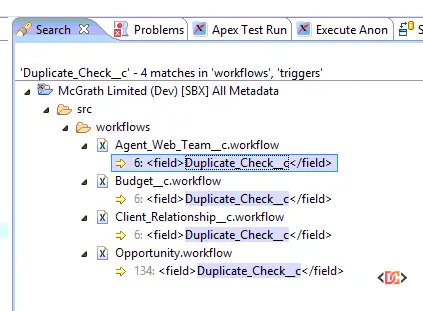
To troubleshoot this:
1. Search your src/objects folder for the <unique> tag to identify which fields are enforced as unique.
2. Check src/workflows and src/triggers to see if any logic is populating these unique fields automatically upon deployment (e.g., through a post-install script or an active trigger).
3. Temporarily deactivate any triggers or workflows on the object in the destination org to see if the metadata can land successfully.
Frequently Asked Questions
Why does Salesforce return '' instead of the actual record ID?
This usually happens when the error occurs deep within the Salesforce application stack, specifically during the 'Pre-copy' or 'Schema Validation' phase. Because the record causing the conflict is a system-generated record (like a metadata entity mapping), the API does not always have a friendly name to return to the user.
Does this error occur with Salesforce DX (SFDX)?
Yes, while SFDX provides better error handling, the underlying Metadata API is the same. You will see this error in project deploy start commands if there are history tracking or record type inconsistencies in your scratch org or sandbox.
Can I just delete the object in the destination org and redeploy?
While this would solve the error, it is rarely a viable option in production or established sandboxes because deleting an object deletes all associated data. Use the XML workarounds mentioned above to preserve your data integrity.
Wrapping Up
The duplicate value found: <unknown> error is a classic example of Salesforce metadata being overly protective of the database schema. By systematically checking your History Tracking settings, verifying Record Type consistency, and scrubbing your Page Layout XML for duplicate action items, you can resolve this issue without needing to log a long-winded case with Salesforce Support.
Always remember to back up your metadata before performing find-and-replace operations on XML files, and try to deploy the object's fields individually if the full object deployment continues to fail. This helps isolate exactly which component is triggering the database conflict.