You have just finished installing the Salesforce CLI and the Salesforce Extension Pack in Visual Studio Code, ready to dive into some serious development. You hit Cmd+Shift+P (or Ctrl+Shift+P), type in SFDX: Authorize an Org, and... nothing. The command simply isn't there.
This is a common frustration for both new and experienced Salesforce developers. While it might feel like a bug in the installation, the absence of the SFDX: Authorize an Org command is usually a matter of workspace context or versioning. In this guide, we will walk through the specific reasons why these commands disappear and how you can restore your Salesforce DX workflow in minutes.
Understanding the Context-Aware Nature of Salesforce DX
The Salesforce Extension Pack for VS Code is designed to be "context-aware." This means that the extensions do not activate all their features the moment you open the editor. Instead, they wait for specific triggers to ensure they don't consume unnecessary system resources.
If you open a blank window in VS Code or a folder that doesn't look like a Salesforce project, the extension assumes you aren't working on Salesforce code. Consequently, it hides the bulk of the SFDX commands to keep your Command Palette clean. To fix this, you must ensure you are working within a recognized Salesforce DX project structure.
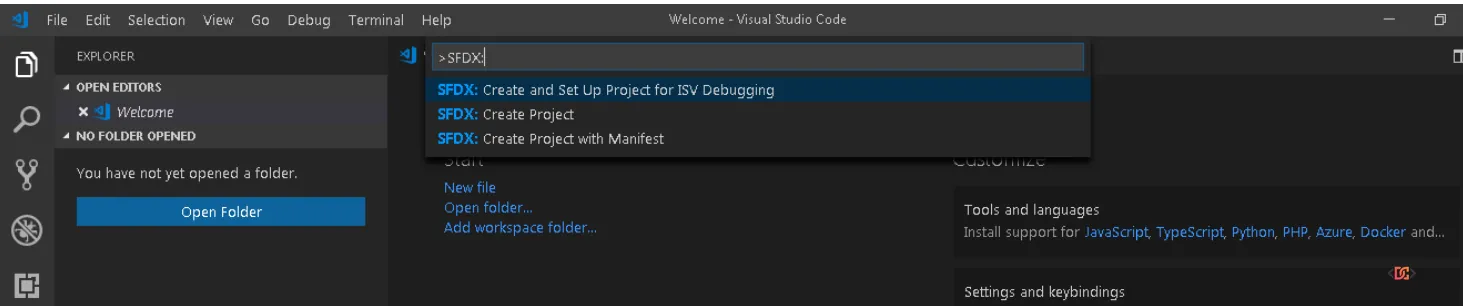
The Primary Solution: Create or Open a Salesforce Project
The most frequent reason for missing SFDX commands is that you haven't created a project yet. Many SFDX commands, including authorization, rely on the presence of a sfdx-project.json file to function correctly. This file defines the project's metadata, package directories, and API version.
How to Create a New Project
If you are starting from scratch, follow these steps:
1. Open VS Code.
2. Open the Command Palette (Ctrl+Shift+P or Cmd+Shift+P).
3. Type SFDX: Create Project and select it.
4. Choose a template (Standard is usually best) and give your project a name.
5. Once the project is created, VS Code will reload. Now, try searching for the Authorize an Org command again.
Ensure You Are at the Project Root
A common mistake is opening a parent folder that contains several different projects. If your VS Code workspace is pointed at C:\Users\Documents\ but your Salesforce project is located at C:\Users\Documents\MySalesforceProject, the extensions may fail to initialize.
Always go to File > Open Folder and select the specific folder that contains your sfdx-project.json file. Once the root of the project is the root of your VS Code explorer, the full suite of SFDX commands will become available.
Syncing Your Tools: CLI and Extension Updates
Salesforce DX is a rapidly evolving ecosystem. If your Salesforce CLI version and your VS Code Extension Pack versions are out of sync, you may experience missing commands or unexpected errors. As of mid-2025, Salesforce has fully transitioned to the sf (v2) CLI, though sfdx commands are still aliased for compatibility.
Update the Salesforce CLI
Open your terminal (inside or outside VS Code) and run the following command to ensure your CLI is up to date:
sf update
(Note: If you are still using the older version, you might use sfdx update, but it is highly recommended to migrate to the sf executable for the latest features.)
Refresh the Extension Pack
Sometimes, the extension's internal cache can become corrupted after a CLI update. To resolve this:
1. Go to the Extensions view in VS Code (Ctrl+Shift+X).
2. Search for Salesforce Extension Pack.
3. If an update is available, click Update.
4. If it is already updated, try Uninstalling it, restarting VS Code, and then Installing it again to force a clean initialization.
The Role of the Project Manifest
In some development scenarios, particularly when working with Source-Tracked Orgs (Scratch Orgs) or older Sandbox environments, the extension looks for a "manifest" to understand the project's scope.
If you still don't see the authorization options, ensure your project has a manifest folder with a package.xml file. You can generate this automatically when creating a project by selecting the "Standard" template, or you can create one manually. While not strictly required for every command, having a valid manifest helps the Salesforce Extension Pack recognize the project type more reliably.
Troubleshooting Java Dependencies
It is often overlooked, but the Salesforce Extension Pack requires a Java Development Kit (JDK) to run its language servers (like the Apex Language Server). If Java is not installed or the path is incorrectly configured in VS Code, the extension might fail to load entirely, taking the SFDX commands with it.
- Ensure you have JDK 11, 17, or 21 installed.
- In VS Code, go to Settings and search for
salesforcedx-vscode-apex.java.home. - Set this path to the location of your JDK installation.
Frequently Asked Questions
Why do I only see 'SFDX: Create Project' and nothing else?
This happens because VS Code hasn't detected a Salesforce environment yet. Once you run the 'Create Project' command and open that new folder, the extension triggers an 'Activation Event,' which loads the remaining commands like 'Authorize an Org' and 'Deploy Source to Org.'
Can I authorize an org without a project?
Technically, you can use the terminal to run sf org login web, which will authorize an org globally on your machine. However, to use the VS Code UI features (like the 'Deploy' button or the Org Browser), you must be inside a valid SFDX project.
I updated everything and it's still missing. What now?
Check the Output tab in VS Code (View > Output) and select Salesforce CLI from the dropdown menu. This log will often show specific error messages, such as a missing dependency or a path error, that can give you a clue as to why the extension isn't loading.
Key Takeaways
- Context is King: Always open the root folder of your Salesforce project to trigger the SFDX commands.
- Project Required: You cannot use most SFDX commands in a blank VS Code window; use
SFDX: Create Projectfirst. - Keep Tools Current: Regularly run
sf updateand keep your Salesforce Extension Pack updated to the latest version. - Check Dependencies: Ensure your Java JDK is correctly installed and configured in the VS Code settings.
By following these steps, you ensure a stable development environment that allows you to focus on what matters: building great solutions on the Salesforce platform.