Setting up the Sitecore 10 Headless Getting Started template is a major milestone for developers moving toward a modern, containerized architecture. However, even with the official documentation, you might encounter a frustrating roadblock where the Identity Server container fails to initialize. This often manifests as a cryptic Base64 conversion error in the container logs, preventing your entire Sitecore environment from becoming operational.
In this guide, you will learn how to diagnose why the Identity Server fails to parse your license key and the specific steps needed to resolve environment variable conflicts that cause these startup failures. Understanding how Sitecore handles license data within Docker is essential for maintaining a stable local development environment.
The Problem: Identity Server License Format Exception
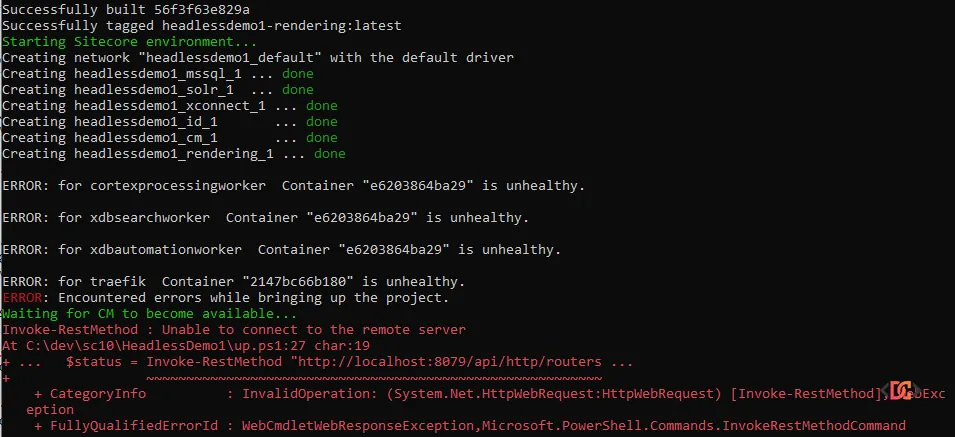
When spinning up a Sitecore 10 Docker environment using the up.ps1 script, you might notice that while some containers start successfully, the Identity Server (id) container exits almost immediately. If you inspect the logs of the failing container, you will likely see a stack trace similar to this:
Unhandled Exception: System.FormatException: The input is not a valid Base-64 string as it contains a non-base 64 character, more than two padding characters, or an illegal character among the padding characters.
at System.Convert.FromBase64CharPtr(Char* inputPtr, Int32 inputLength)
at System.Convert.FromBase64String(String s)
at Sitecore.Framework.Runtime.Configuration.License.ReadFromRaw(ISitecoreHostingEnvironment host)
at Sitecore.Framework.Runtime.Licensing.SitecoreHostingEnvironmentExtensions.GetLicense(ISitecoreHostingEnvironment host)
Because the Identity Server is a central pillar of the Sitecore XP topology, its failure triggers a domino effect. Subsequent containers like cortexprocessingworker, xdbautomationworker, and xdbsearchworker will also fail to initialize because they cannot authenticate against the Identity provider.
Why the Base64 Error Occurs
Sitecore Docker images support two primary methods for providing a license:
1. Mounted License File: You provide a path to a physical license.xml file on your host machine (e.g., C:\installs\licenses\).
2. Environment Variable: You provide the entire content of the license.xml file as a Base64-encoded string within the SITECORE_LICENSE variable.
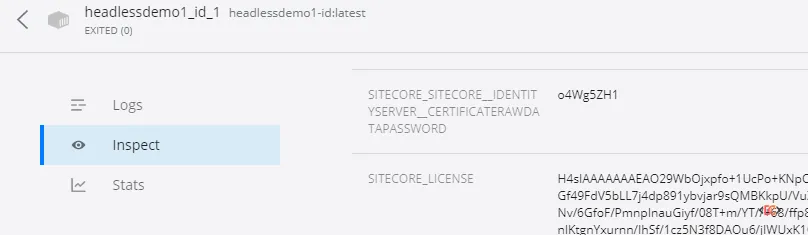
The error occurs because of a conflict between these two methods. If you have an existing environment variable named SITECORE_LICENSE on your host machine—perhaps from a previous Sitecore installation or a different Docker project—the container may attempt to use it instead of the mounted file. If that variable contains a plain-text path or a malformed string, the Identity Server's .NET Core runtime will fail to decode it, resulting in the System.FormatException.
Step-by-Step Solution: Resolving the Conflict
To fix this, you must ensure that your host machine does not have a stale or conflicting SITECORE_LICENSE environment variable that is being "leaked" into your Docker Compose session.
Step 1: Check for Existing Environment Variables
Open a PowerShell window on your host machine and run the following command to see if the variable is currently set:
$env:SITECORE_LICENSE
If this command returns a value (like a file path or an old license string), it is likely the culprit. Even if your .env file in the project directory has SITECORE_LICENSE= (blank), the system-level environment variable can take precedence in certain Docker configurations.
Step 2: Remove the Conflicting Variable
You can remove the variable for the current session using PowerShell:
Remove-Item Env:\SITECORE_LICENSE
To remove it permanently, search for "Edit the system environment variables" in your Windows Start menu, click Environment Variables, and delete SITECORE_LICENSE from both the User and System sections.
Step 3: Verify your .env Configuration
Ensure your project's .env file is correctly configured to use the Mounted License strategy. It should look like this:
# Path to the folder containing license.xml
HOST_LICENSE_FOLDER=C:\installs\licenses\

# Keep this empty if using the folder mount strategy
SITECORE_LICENSE=
Step 4: Clean and Restart the Environment
After removing the variable, it is best to perform a clean start to ensure no cached configuration remains:
- Stop the containers:
docker-compose down - (Optional) Prune unused configurations:
docker system prune - Restart the environment:
./up.ps1
Alternative Approach: Using Base64 Encoding
If you prefer not to use a mounted folder, you can explicitly use the Base64 method. This is often preferred in CI/CD pipelines. To do this, encode your license.xml file to Base64:
[Convert]::ToBase64String([IO.File]::ReadAllBytes("C:\path\to\license.xml"))
Paste the resulting string directly into the SITECORE_LICENSE variable in your .env file. If you choose this route, ensure the HOST_LICENSE_FOLDER variable is removed or commented out in your docker-compose.yml to avoid further confusion.
Frequently Asked Questions
Why does Identity Server fail but the CM container works?
The Sitecore Content Management (CM) container and the Identity Server (ID) container use different underlying runtimes. The CM container typically runs on .NET Framework, while the Identity Server runs on .NET Core. The .NET Core implementation of the Sitecore Host runtime is more strict regarding the format of the SITECORE_LICENSE variable, which is why the ID container usually crashes first.
Does the Sitecore version matter for this fix?
While this specific error is common in Sitecore 10.0, it can occur in any version from 9.3 through 10.x that utilizes the Sitecore Identity Server. Always ensure your SITECORE_VERSION in the .env file matches the images you are pulling (e.g., 10.0.0-ltsc2019).
Can I use a Sitecore 9.x license for Sitecore 10?
Yes, generally a Sitecore 9.x license is valid for Sitecore 10, provided it has not expired and contains the necessary permissions for the modules you are running (like JSS/Headless Services).
Wrapping Up
License errors in Sitecore Docker environments are almost always a result of configuration overlap. By ensuring that your SITECORE_LICENSE environment variable is either correctly formatted as a Base64 string or completely removed in favor of a volume mount, you can resolve the Identity Server crash and get your development environment back on track.
Always remember to check your host-level environment variables whenever you switch between different Sitecore versions or projects to avoid these types of "ghost" configurations.