
As a Sitecore developer, you often find yourself needing to audit content, perform bulk updates, or migrate data. One of the most common tasks in these scenarios is identifying every single item in the content tree that was created from a specific template. While the Sitecore UI provides some basic search functionality, Sitecore PowerShell Extensions (SPE) offers a far more powerful and flexible way to gather this data.
In this guide, you will learn multiple ways to retrieve items based on their template ID or name. We will cover high-performance methods using search indexes, the Link Database, and traditional tree traversal, as well as how to handle template inheritance.
Why Use PowerShell to Find Items by Template?
Manually searching for items in the Content Editor is time-consuming and prone to human error, especially in large-scale enterprise environments. Using PowerShell allows you to:
- Automate Audits: Quickly see how many pages are using an outdated template.
- Perform Bulk Updates: Pipe the results directly into other commands to change field values or move items.
- Handle Inheritance: Find not just the direct children of a template, but also items that inherit from it.
Method 1: Using the Content Search Index (Recommended for Speed)
The fastest way to find items in a large Sitecore instance is to use the Find-Item command, which queries the search index (Solr or Azure Search) rather than crawling the database. This method is nearly instantaneous, even if you have hundreds of thousands of items.
$defaultPath = "/sitecore/content"
[Sitecore.Data.ID]$articleId = "{03360FC1-B4C0-4770-9E1D-79E8317B74DD}"

# Query the master index for items with a specific TemplateId
$articles = Find-Item -Index sitecore_master_index `
   -Where 'TemplateId = @0 and Path.StartsWith(@1)' `
   -WhereValues $articleId, $defaultPath | Initialize-Item
Note: We use Initialize-Item at the end of the pipeline. This is crucial because Find-Item returns search result objects; Initialize-Item converts them back into full Sitecore Item objects so you can access their fields and properties.
Alternatively, if you prefer using criteria objects or want to filter by template name:
$articles = Find-Item `
   -Index sitecore_master_index `
   -Criteria @{Filter = "Equals"; Field = "_templatename"; Value = "Article"},
   @{Filter = "Equals"; Field = "_language"; Value = "en"},
   @{Filter = "StartsWith"; Field = "_fullpath"; Value = "/sitecore/content" }
Method 2: Leveraging the Link Database
If your search indexes are not up to date, or if you want to avoid index-related latency, the Link Database is your best friend. The Get-ItemReferrer command is extremely efficient because it looks at the references already stored in the Sitecore Link Database.
$sampleItemTemplateId = "{76036F5E-CBCE-46D1-AF0A-4143F9B557AA}"
$sampleItemTemplateItem = Get-Item -Path "master:" -ID $sampleItemTemplateId

# This returns all items that refer to the specified template
Get-ItemReferrer -Item $sampleItemTemplateItem
Before running this, ensure your Link Database is rebuilt (Control Panel > Database > Rebuild Link Database) to guarantee accuracy.

Method 3: Finding Items with Template Inheritance
A common challenge is finding items that use a template or any template that inherits from it. Direct ID matching won't work here. Instead, you need to check the inheritance chain using the DescendsFromOrEquals method.
The following script uses a "trampoline technique" with a queue to efficiently process items without hitting recursion depth limits:
function Get-ItemBasedOnTemplate {
    param(
        [string]$TemplateId
    )

    $queue = New-Object System.Collections.Queue
    $processedLookup = New-Object System.Collections.Generic.HashSet[string]

    if(-not(Test-Path -Path "master:$($TemplateId)")) { return }
    $processedLookup.Add($TemplateId) > $null

    Get-ItemReferrer -Id $TemplateId -ItemLink |
        Where-Object { $_.SourceItemID } |
        ForEach-Object { $queue.Enqueue($_.SourceItemID) }

    $database = Get-Database -Name "master"
    while($queue.Count -and ($referrerId = $queue.Dequeue())) {
        if($processedLookup.Contains($referrerId)) { continue }
        $processedLookup.Add($referrerId) > $null
        $referrer = $database.GetItem($referrerId)

        if(!$referrer) { continue }

        if($referrer.Paths.FullPath.StartsWith("/sitecore/templates")) {
            if($referrer.Name -eq "__Standard values") { continue }
            foreach($referrerItemLink in Get-ItemReferrer -Id $referrerId -ItemLink | Where-Object { $_.SourceItemID }) {
                $queue.Enqueue($referrerItemLink.SourceItemID)
            }
            $itemTemplate = [Sitecore.Data.Managers.TemplateManager]::GetTemplate($referrerId, $database)
        } else {
            $itemTemplate = [Sitecore.Data.Managers.TemplateManager]::GetTemplate($referrer)
        }

        if ($itemTemplate -and $itemTemplate.DescendsFromOrEquals($TemplateId)) {
            $referrer
        }
    }
}

$baseTemplateId = "{76036F5E-CBCE-46D1-AF0A-4143F9B557AA}"
Get-ItemBasedOnTemplate -TemplateId $baseTemplateId
This approach is significantly faster than a standard recursive tree crawl because it only visits items that are already linked to the template in the database.
Method 4: Tree Traversal (Best for Small Scopes)
If you only need to search within a small, specific branch of the content tree, a simple recursive Get-ChildItem might be sufficient. This is also useful if you need to combine the template check with specific field value requirements.
$templateId = "{6F6A4612-5750-46CE-97CE-EBDC599FE480}"
$rootPath = "master:/sitecore/content/Home/Products"

# Get items and filter by template and a specific field value
$items = Get-ChildItem -Path $rootPath -Recurse | Where-Object {
    $_.TemplateId -eq $templateId -and -not [string]::IsNullOrEmpty($_.Fields["Title"].Value)
}

$items | ForEach-Object { Write-Host $_.Paths.Path }
Using Built-in SPE Reports
If you prefer a GUI-based approach without writing code, Sitecore PowerShell Extensions comes with pre-built reports.
- Open the Reporting Tools in the Sitecore Desktop menu.
- Navigate to PowerShell Reports > Solution Audit.
- Look for the Items with Template report.
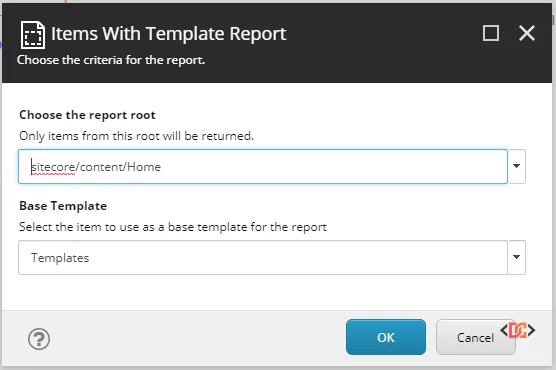
This report allows you to select a root item and a template, and it will generate a list for you. However, be aware that this report can be slow on very large trees as it performs a deep scan.
Common Mistakes to Avoid
- Using
-Recurseon the Root: RunningGet-ChildItem -Path "/sitecore" -Recurseon a production database with millions of items will likely crash your session or cause a significant performance dip. Always useFind-Item(Index) for global searches. - Forgetting Standard Values: When searching for templates, you may accidentally include
__Standard valuesitems in your results. Always filter these out if you only want content items. - Ignoring the Link Database: If
Get-ItemReferrerisn't returning what you expect, check if the items were recently moved or if the Link Database is out of sync.
Frequently Asked Questions
How do I check if an item inherits from a base template?
Use the Sitecore API method DescendsFromOrEquals(templateId). In SPE, you can access this via the TemplateManager. This is more reliable than checking the TemplateId property directly, which only looks at the immediate template.
Is it better to use the Template ID or Template Name?
Always use the Template ID whenever possible. Template names can change, or you might have multiple templates with the same name in different folders. IDs are unique and permanent.
Why is Find-Item returning old data?
Find-Item relies on your search provider (Solr, Lucene, or Azure). If you recently created items or changed templates, you may need to wait for the index to update or manually trigger a "Rebuild" in the Indexing Manager.
Wrapping Up
Finding items by template is a fundamental skill for any Sitecore developer. For speed and scale, stick with Method 1 (Search Index). For complex inheritance and relationship mapping, Method 3 (Link Database with Inheritance) is the most robust choice. By choosing the right tool for the job, you can ensure your Sitecore maintenance tasks remain performant and accurate.