If you have ever managed a large-scale mailing in CiviCRM, you may have encountered a mysterious and frustrating issue: the templates_c folder suddenly ballooning in size. For organizations sending to tens of thousands of contacts, this folder—which stores compiled Smarty templates—can grow to 30GB or more in a single session. Left unchecked, this growth can exhaust your server's disk space, leading to database crashes and site downtime.
In this guide, you will learn why the CiviCRM templates_c directory grows so aggressively during CiviMail jobs and, more importantly, how to automate the cleanup process so you never have to manually empty directories via SSH again.
The Root Cause: Why templates_c Bloat Occurs
To understand the solution, you first need to understand the mechanism. CiviCRM uses the Smarty template engine to render everything from the administration dashboard to the personalized content in your bulk mailings.
When you send a mailing, CiviCRM processes tokens (like {contact.first_name}) and dynamic content for every recipient. To improve performance, Smarty compiles these templates into PHP files and stores them in the templates_c directory (often found within your CiviCRM private files folder, organized by locale like en_GB).
While caching is generally good for performance, large mailings with complex logic or multiple variations can trigger the creation of thousands of unique compiled files. If your system is not configured to purge these files automatically, they will persist indefinitely, consuming more disk space with every mailing you send.
Step 1: Enabling the 'Clean-up Temporary Data' Job
Surprisingly, CiviCRM does not enable its primary maintenance job by default. This job is responsible for clearing out old temporary files, logs, and cache entries that are no longer needed.
To enable this job: 1. Navigate to Administer > System Settings > Scheduled Jobs. 2. Locate the row labeled Clean-up Temporary Data and Files. 3. Click the More link at the end of the row and select Enable.
Once enabled, this job will run based on your system's cron frequency (typically daily). However, simply enabling the job might not be enough for systems experiencing extreme templates_c bloat. By default, this job focuses on temporary database tables and session data rather than the physical template cache files.
Step 2: Configuring Parameters to Target tplCache
To ensure that the scheduled job actually deletes the files in your templates_c directory, you must pass specific parameters to the job. Without these parameters, the job may ignore the Smarty compiled templates entirely.
- Go back to Administer > System Settings > Scheduled Jobs.
- Click Edit on the Clean-up Temporary Data and Files job.
- In the Command Parameters field, you need to specify that the template cache should be cleared.
Add the following parameter:
cache=1
Or, depending on your version and specific requirements:
tplCache=1
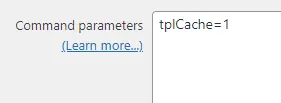
By adding this parameter, you instruct the cleanup script to look specifically at the templates_c directory and remove compiled files that are no longer in active use. This is the single most effective way to prevent 30GB folders from crashing your server.
Step 3: Verifying File Permissions
A common pitfall that prevents these jobs from working is a permissions mismatch. If your CiviCRM cron job is executed by a different system user than your web server (Apache or Nginx), the cron user may not have the necessary permissions to delete files created by the web user.
Ensure that:
- The templates_c directory is owned by the web server user (e.g., www-data or apache).
- The user running the CiviCRM cron job belongs to the same group as the web server user.
- Permissions are set to 775 for directories and 664 for files within the cache.
If the permissions are restrictive (e.g., 755), the scheduled job might trigger without errors but fail to actually remove the files, leading to the same disk space issues.
Best Practices for Large CiviMail Installations
If you consistently send mailings to 50,000+ contacts, consider these additional strategies to keep your server healthy:
1. Increase Cron Frequency
Instead of running the cleanup job once a day, consider running it every few hours during peak mailing periods. This prevents the cache from reaching critical mass before the next cleanup cycle.
2. Monitor Disk Usage with Alerts
Don't wait for the server to crash. Use server monitoring tools (like Monit or simple bash scripts) to alert you when the templates_c directory exceeds a certain threshold (e.g., 5GB).
3. Use a Dedicated Partition
If possible, place your CiviCRM files directory on a separate disk partition. This ensures that even if the cache fills up, it won't crash the entire operating system or the database server.
Frequently Asked Questions
Can I manually delete the contents of templates_c?
Yes. It is safe to delete the contents of the templates_c folder at any time. CiviCRM will simply regenerate the files it needs the next time a page is loaded or a mailing is sent. However, do not delete the directory itself—only the files and subfolders inside it.
Does clearing the template cache slow down my site?
Initially, yes. The first time a page is accessed after a cache clear, Smarty must re-compile the template. On most modern servers, this delay is negligible (milliseconds), but you may notice a slight increase in load time for the first few visitors.
Why does CiviMail create so many files compared to regular pages?
CiviMail often uses complex personalization. If you use A/B testing, multiple components, or sophisticated Smarty logic within your email body, Smarty may generate a unique compiled file for various permutations of the mailing content to ensure high-speed delivery during the actual SMTP phase.
Wrapping Up
Managing the templates_c directory is a critical task for any CiviCRM administrator. By enabling the Clean-up Temporary Data and Files scheduled job and correctly configuring the cache=1 parameter, you can automate a process that otherwise requires manual intervention and high-stress server maintenance.
Regularly monitoring your scheduled jobs and ensuring your file permissions are aligned will keep your CiviMail performance high and your server storage stable disk space secure. If you continue to see growth despite these settings, verify that your system cron is actually executing and that no PHP memory limits are preventing the cleanup script from finishing its task.