Sitecore Rocks remains one of the most powerful productivity tools in a Sitecore developer's arsenal. Even as the platform moves toward headless architectures and modern CLI tools, many developers working on Sitecore XP and MVC-based solutions rely on the Sitecore Rocks Visual Studio extension to bridge the gap between their IDE and the Sitecore instance.
One of the most useful features is Folder Sync, which allows you to automatically synchronize files—like MVC views (.cshtml), CSS, and JavaScript—from your Visual Studio project directly into the Sitecore webroot. However, a common frustration arises when you right-click a folder and find the "Sitecore >" context menu options, including Folder Sync, are greyed out or completely disabled.
In this guide, you will learn exactly why the Sitecore Rocks Folder Sync option becomes disabled and how to restore it by correctly configuring your project connections and server-side connectors.
Understanding the Sitecore Rocks Connection Architecture
Before diving into the fix, it is important to understand how Sitecore Rocks communicates with your instance. Many developers assume that if they can see their items in the Sitecore Explorer pane, everything is configured correctly. This is a common misconception.
Sitecore Rocks uses two distinct types of connections: 1. The Explorer Connection: This is a global connection within Visual Studio that allows you to browse the content tree, edit items, and manage the media library. 2. The Project-to-Instance Connection: This is a specific mapping that tells Sitecore Rocks which Visual Studio project belongs to which Sitecore instance.
If you haven't explicitly linked your Visual Studio project to a Sitecore connection, the extension doesn't know where to sync your files. Consequently, it disables the Folder Sync and other project-specific features to prevent errors. This architecture is intentional, as it allows you to have multiple projects in a single solution targeting different Sitecore instances.
Step 1: Linking Your Visual Studio Project to Sitecore
The most frequent cause for the disabled Folder Sync menu is a missing project-level connection. Even if your global Sitecore Explorer is working perfectly, you must perform the following steps for each project in your solution:
- Open your Solution Explorer in Visual Studio.
- Right-click on the specific Project (not the Solution) that contains your MVC views or assets.
- Navigate to Sitecore > Project Properties.
- In the properties window, locate the Sitecore Explorer Connection dropdown.
- Select the connection that corresponds to your local or development Sitecore instance.
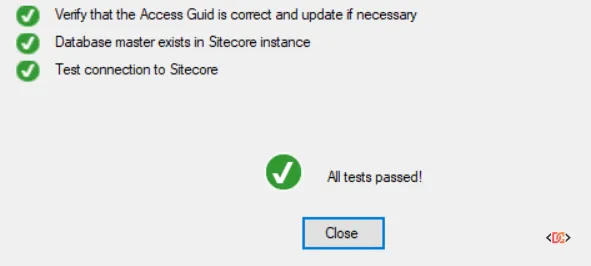
- Click the Test button to ensure the project can communicate with the service.
Once this link is established, Sitecore Rocks knows the target destination for any synchronization actions, and the context menu should become active.
Step 2: Verifying the Sitecore Connector Installation
If linking the project doesn't immediately solve the problem, the issue likely lies with the server-side component. Sitecore Rocks requires a web service to be installed on the Sitecore instance itself to handle file operations and item updates. This is typically the Hard Rock Service.
In some cases, the connection might exist, but the advanced "TDS-related" or synchronization options remain hidden because the connector isn't fully initialized for that project.
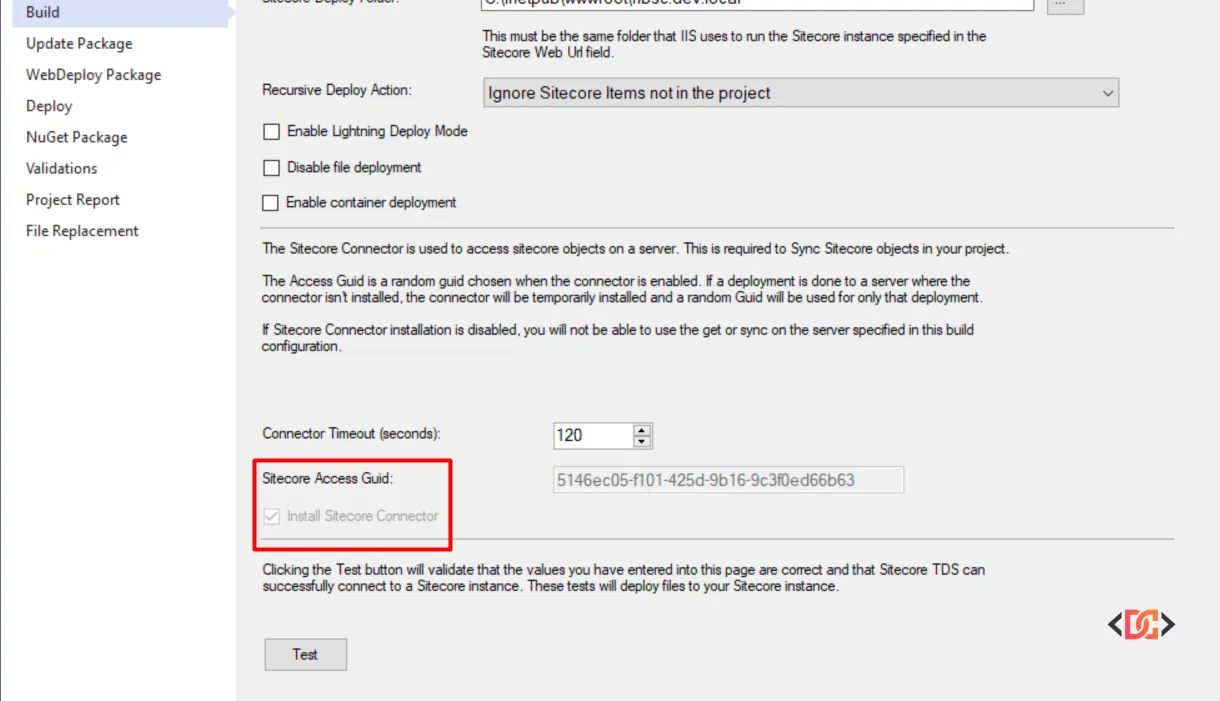
As shown in the image above, you should ensure that the "Installed Sitecore Connector" checkbox is marked within your project properties. After checking this, run the connection test again. This process often triggers Sitecore Rocks to deploy or verify the necessary .aspx files in your Sitecore bin and sitecore modules folders, which are required for the Folder Sync functionality to operate.
Once successfully verified, you should see an expanded list of options in your context menu, including the ability to sync folders and items effectively.
Best Practices for Folder Synchronization
To ensure a smooth experience with Sitecore Rocks and Folder Sync, follow these developer best practices:
Run Visual Studio as Administrator
Sitecore Rocks often needs to write files to the C:\inetpub\wwwroot directory or modify IIS-related settings. If Visual Studio is not running with Administrative privileges, these file operations may fail silently, or the extension may disable certain features to avoid permission errors.
Use the Hard Rock Service
When setting up your connection, you are usually given a choice between the "Good Old Web Service" and the "Hard Rock Service." Always choose the Hard Rock Service. It is faster, more secure, and supports the full range of modern Sitecore Rocks features, including advanced synchronization and query tools.
Keep Paths Consistent
Folder Sync works best when your Visual Studio project structure mirrors your Sitecore webroot structure. For example, if your views are located in ~/Views/Home/Index.cshtml in your project, ensure they map to the same relative path in the target instance. You can configure specific path mappings in the Sitecore Rocks options if your project structure is unconventional.
Troubleshooting Common Pitfalls
If you have followed the steps above and the option is still disabled, consider these edge cases:
- Version Compatibility: Sitecore Rocks was heavily maintained during the Sitecore 7.x and 8.x eras. If you are using a very recent version of Sitecore (such as 10.3 or 10.4) with an older version of the Rocks extension, some features may break due to changes in the Sitecore kernel or security hardening. Always check for the latest version of the extension in the Visual Studio Marketplace.
- Feature Toggle Settings: Within the Visual Studio top menu, go to Sitecore > Turn Features On or Off. Ensure that "Folder Synchronization" is checked. Note that in some versions of Rocks, the "All" radio button may not appear selected after clicking OK, but as long as the individual checkboxes remain checked, the features are active.
- Firewalls and Networking: If you are working with a remote Sitecore instance (not on localhost), ensure that your firewall allows traffic to the
/sitecore/shell/WebService/Service2.asmxor the Hard Rock Service endpoints.
Frequently Asked Questions
Why is the 'All' radio button not staying selected in 'Turn Features On or Off'?
This is a known UI quirk in several versions of Sitecore Rocks. As long as the individual features you need (like Folder Synchronization) are checked in the list, the functionality will remain active. You can ignore the radio button state if the checkboxes persist.
Does Folder Sync replace tools like TDS or Unicorn?
Not exactly. Folder Sync is a developer productivity tool for pushing file changes quickly during active development. TDS (Team Development Studio) and Unicorn are serialization tools designed for source control and team synchronization of Sitecore items. Most developers use Folder Sync for rapid UI/View iterations and Unicorn/TDS for managing the Sitecore item database.
Can I use Folder Sync with Sitecore containers?
Yes, but it requires additional configuration. You must ensure the Sitecore Rocks service is installed inside the rendering or CM container and that your Visual Studio instance can route traffic to the container's internal ports. Most developers prefer using Docker volumes for file syncing in containerized environments instead of Rocks.
Wrapping Up
Sitecore Rocks Folder Sync is a vital tool for reducing the feedback loop during development. By ensuring your Visual Studio project is linked to a connection and the Sitecore Connector is verified, you can resolve the issue of disabled menu options.
Remember to always run Visual Studio as an administrator and verify your connection properties whenever you move to a new machine or update your Sitecore instance. With these settings in place, you can get back to building great digital experiences without the manual overhead of copying files.