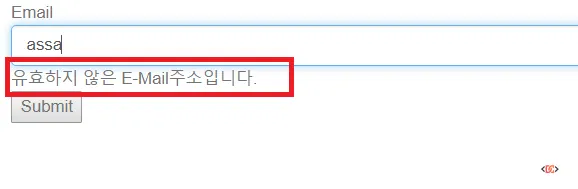
Building multilingual digital experiences is a cornerstone of the Sitecore platform. However, developers often encounter a frustrating hurdle when working with Sitecore Forms: even after translating validation items in the Content Editor, certain error messages—specifically for the Email field—continue to display in English. If you have ever seen an English validation error on a Korean, Japanese, or German form, you are not alone.
In this guide, you will learn why this happens and how to implement a robust solution to ensure your Sitecore Forms speak the same language as your users. We will cover the root cause involving client-side libraries and provide two distinct methods to resolve the issue.
Understanding the Root Cause: Sitecore vs. jQuery Validation
The reason you see English error messages despite translating the validation items at /sitecore/system/Settings/Forms/Validations/Email Validator lies in how Sitecore handles client-side validation.
Sitecore Forms relies on the jQuery Validation plugin to provide immediate feedback to users. This library comes with its own set of default error messages hardcoded in English. When a user types an invalid email format, the jQuery library often catches the error before the form is even submitted to the server.

There is a subtle distinction to observe here: 1. Client-Side Validation: Triggered by jQuery. If the input doesn't match jQuery's internal email regex, it shows the default English message. 2. Server-Side/Sitecore Validation: Triggered after a partial postback or once the jQuery check passes but the Sitecore-specific regex fails. This is where your translated Sitecore items typically kick in.
Because jQuery's validation usually triggers first, your users see the English "Please enter a valid email address" instead of your translated text. This is a known behavior in Sitecore 9 and 10, as the platform does not include localized jQuery validation scripts out of the box.
Solution 1: Global Localization via Layout (Recommended for Multi-Language Sites)
If your website supports multiple languages, the most efficient approach is to dynamically load the appropriate jQuery validation locale file based on the current Sitecore context language. This ensures that every form on your site adheres to the correct language settings.
Step 1: Obtain the Localization Files
First, you need the actual translations for jQuery Validation.
1. Download the jquery-validation source.
2. Extract the ZIP file and locate the src/localization folder.
3. Copy this localization folder into your Sitecore project at: \sitecore modules\Web\ExperienceForms\scripts\localization.
Step 2: Update Your Layout
Next, you need to tell your site to load these scripts when a specific language is active. Open your main layout file (commonly \Views\Shared\MVCOuterLayout.cshtml) and add the following logic below the @RenderBody() helper:
<script type="text/javascript">
var lang = '@Sitecore.Context.Language.Name';
var script = document.createElement("script");

// Example for Korean (ko-KR)
if (lang == 'ko-KR')
{
    script.src = "/sitecore%20modules/Web/ExperienceForms/scripts/localization/messages_ko.js";
    $("head").append(script);
}
</script>
Step 3: Customize the Message
If the default jQuery translation isn't exactly what you want, you can open the messages_ko.js file and modify the string associated with the email key:
(function( factory ) {
    if ( typeof define === "function" && define.amd ) {
        define( ["jquery", "../jquery.validate"], factory );
    } else if (typeof module === "object" && module.exports) {
        module.exports = factory( require( "jquery" ) );
    } else {
        factory( jQuery );
    }
}(function( $ ) {

/*
 * Localized default methods for the jQuery validation plugin.
 * Locale: KO (Korean; 한국어)
 */
$.extend( $.validator.messages, {
    required: "필수 항목입니다.",
    email: "올바른 이메일 주소를 입력하세요.", // Update this line
    // ... other messages
});
return $;
}));
Solution 2: Form-Specific Script (Best for Single Language Forms)
If you only need to fix this for a specific form or don't want to modify your global layout, you can utilize the "Scripts" field directly on the Sitecore Form item. This approach is cleaner for targeted fixes but requires manual updates if you have dozens of forms.
- Copy the specific localization file (e.g.,
messages_ko.js) to\sitecore modules\Web\ExperienceForms\scripts. - In the Sitecore Content Editor, navigate to your Form item.
- Locate the Scripts field in the Settings section.
- Enter the name of your script file.
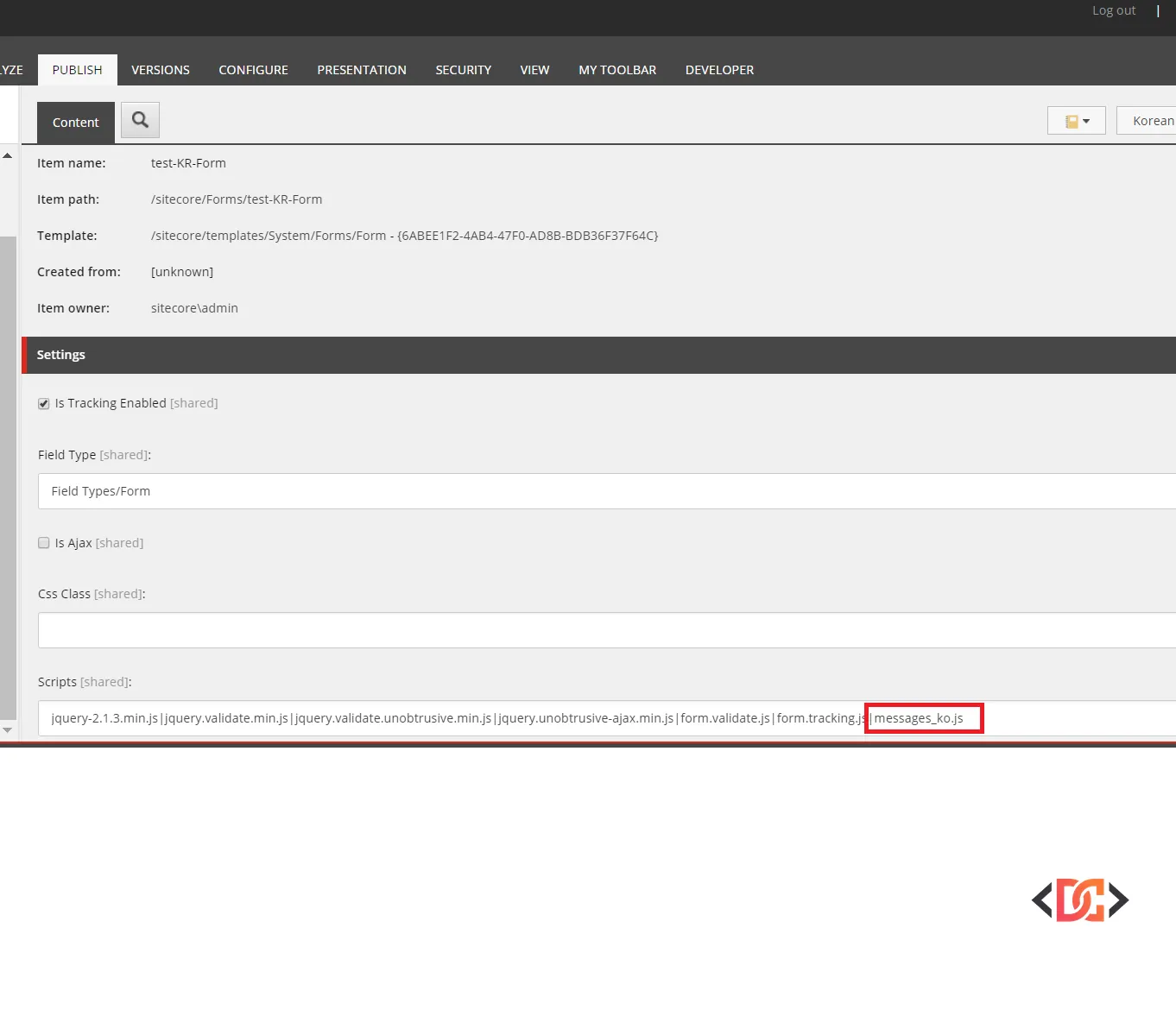
Once published, Sitecore will ensure this script is loaded when the form is rendered, effectively overriding the default English messages for that specific form instance.
Best Practices and Common Pitfalls
When implementing these fixes, keep the following tips in mind to avoid common deployment issues:
- Verify File Paths: Sitecore's folder structure for forms uses spaces (e.g.,
sitecore modules). Ensure your script tags account for this using%20or proper quoting to avoid 404 errors. - Check SXA Compatibility: If you are using Sitecore Experience Accelerator (SXA), the script loading mechanism is slightly different. You should add your localization scripts to the Scripts folder of your Theme and ensure they are included in the metadata partial design.
- Bundle Order: Ensure the localization script loads after the main
jquery.validate.min.jsscript. If it loads before, the$.validatorobject won't exist, and the script will throw an error. - Clear Browser Cache: Validation scripts are often aggressively cached. Always test your changes in an incognito window or clear your cache after deployment.
Frequently Asked Questions
Why did my translation in the Sitecore Content Editor not work immediately?
Sitecore's validation items control the server-side logic and the message sent back if the server rejects the input. However, jQuery Validation (the client-side library) has its own internal checks that trigger before the data ever reaches Sitecore. You must provide a localized JS file to override these client-side defaults.
Does this apply to Sitecore 10.3 and Headless (Next.js)?
This specific fix applies to Sitecore MVC-based forms. If you are using Sitecore Headless with Next.js or React, you are likely using a different validation library (like Formik or React Hook Form). In those cases, you would handle localization via your frontend framework's i18n implementation rather than jQuery scripts.
Can I use this for custom validation rules?
Yes. If you have created a custom validation rule in Sitecore, you can add a corresponding method to the $.validator.messages object in your localization file to ensure it has a client-side counterpart with the correct translation.
Wrapping Up
Fixing localized validation in Sitecore Forms requires a small bridge between the Sitecore backend and the jQuery frontend. By including the appropriate messages_<lang>.js file, you can eliminate jarring English messages on your localized sites and provide a seamless experience for your global users. Whether you choose the global layout approach or the form-specific script field, ensuring your validation is properly localized is a key step in professional Sitecore development.